Custom Log Formats
Teach Logier how to read a log format it doesn't recognize: build a schema by pointing at your sample, let Logier infer one, or have the Copilot draft it for you.
Logier auto-detects a long list of common log formats out of the box. Sooner or later you'll open something none of them fit — an internal service's own format, a CSV export, a one-off script's print statements. A custom log format (Logier calls the saved version a schema) is how you teach Logier to parse that shape, once, and reuse it every time you see it again.
Once saved, a custom format behaves exactly like a built-in parser: it shows up in the format switcher, Logier can auto-select it for matching files, and every table, chart, filter, and Copilot tool works against it the same way.
Three ways to start#
From the Log Formats page. Open it from the sidebar (or Go to Log Formats in the Command Palette) and click New log format…. This is the place to manage formats generally, with or without a file open.
From the format switcher, on a file that doesn't parse. Above the log table, the parser badge shows what Logier is using — AUTO-DETECTED: nginx or similar, plus a match count when you've forced a format by hand. Open it and choose New log format… at the bottom, under your saved formats. Logier opens the same builder as a modal, seeded with the open file as your sample, and applies the result to that file the moment you save.
By asking the Copilot. If Copilot is turned on, just describe the problem:
This log doesn't parse — can you write a format for it?
The Copilot tests candidate patterns against your real file and saves the one that works — the same engine underneath, no editor required. See Copilot Tools for how draft_schema and save_schema work.
The editor: define on the left, results on the right#
However you get there, the builder is one screen split in two: what the format is on the left, what it does to your sample on the right, updating live as you type.
Give it a sample#
Nothing works until Logier has lines to test against. Get a sample in any of these ways:
- —Drop a log file onto the editor.
- —Paste log text you've copied from a terminal, a ticket, or anywhere else, anywhere on the page except inside a text field.
- —Arrive from the format switcher on an unparsed file, or the Log Formats page while that file is still open — either way, the sample is filled in for you already.
Drop or paste a .logschema.json file instead of a log, and Logier recognizes it as an exported schema and imports it rather than treating it as a sample.
Choose a syntax#
Three tabs at the top of the left pane pick how Logier reads the field below:
- —Pattern — a token-based mini-language (the default):
%{TIMESTAMP:time} [%{LEVEL:level}] %{GREEDYDATA:message}. A row of common tokens under the input inserts them at a click. - —Regex — a raw regular expression with named capture groups:
^(?<time>\S+) (?<level>\w+) (?<message>.*)$, for formats the token vocabulary doesn't cover. - —JSON — for a file that's one JSON document (or a stream of JSON records) rather than plain text lines. See Mapping JSON logs below.
Click Detect at any point to have Logier work out a starting pattern from the current sample — the same inference that runs automatically the first time you drop a file in. Detection gets the timestamp and the message boundary right more often than it gets the middle of the line; treat it as a draft to refine rather than a finished answer.
Point at the thing, instead of writing a regex#
For Pattern and Regex formats, the sample lines below the pattern box are interactive: select a run of text in any line and a small field picker appears. Choose a field (time, level, service, message, and so on) and Logier rebuilds the pattern from every span now marked across the visible lines — no hand-written regex required. Fields you've already captured are tinted so you can see the pattern's shape at a glance.
[IMAGE: Selecting text in a sample line to assign it a field]
Timestamps#
Pick a timestamp handling mode next to Timestamp: auto, epoch (seconds), epoch ms, or type your own format string using the token reference behind the Tokens link. Set this explicitly whenever the preview reports a captured timestamp that failed to parse — auto-detection doesn't always guess the right layout.
Skipping non-log lines#
Use Ignore lines matching to drop lines that aren't log entries at all before parsing runs — banner text, # comments, a CSV header row, blank separators. It takes a plain regular expression; anything it matches is counted as ignored in the preview rather than as a parse failure.
Reading the preview#
The right pane shows exactly what the current definition does to your sample, before you save anything:
- —Match rate and a bar showing what fraction of lines parsed cleanly, plus counts broken out by failure kind: no match (the pattern didn't fire at all) and bad timestamp (the pattern matched, but the captured time couldn't be read), because those two need different fixes.
- —What each field captured — a quick sanity check that, say, the field you called
servicedidn't actually grab the log level by mistake. - —As parsed — a small preview table of the first few lines exactly as Logier would show them in the log viewer.
- —Lines that didn't parse — every failing line, with the specific reason next to it, so you're fixing the actual problem instead of guessing.
A schema doesn't have to hit 100% before you save it, but treat a low match rate as a sign to keep iterating rather than something to fix later.
[IMAGE: Preview panel showing match rate and failed lines]
Mapping JSON logs#
Being valid JSON doesn't tell Logier which key is the timestamp, the level, or the message, so JSON files still need a schema. Switch to the JSON tab and:
- Set the path to the records if your file is an object wrapping an array (e.g.
logs); leave it empty if the file is already a JSON array or one record per line. - Click paths in the sample to map them to a field — the same point-and-click idea as text capture, just against JSON keys instead of character spans.
The Records panel replaces the plain sample view in this mode, and shows how many records Logier found at the path you gave it.
Ask the Copilot to help you build it#
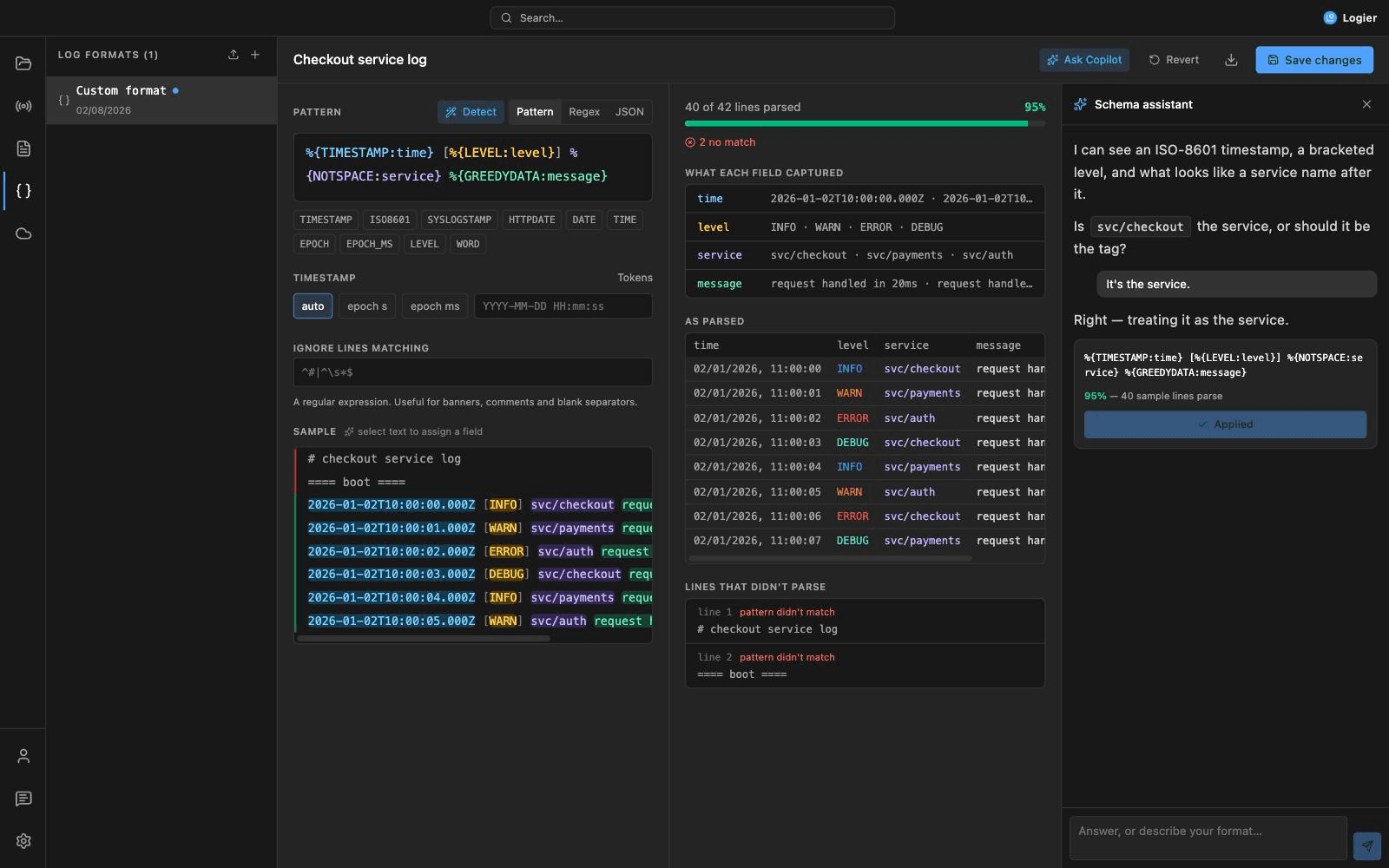
Inside the editor, click Ask Copilot (the sparkle button next to the format name) to open the Schema Assistant, a chat panel dedicated to this one job. It's a separate surface from the regular Copilot drawer: it can see your sample lines, the pattern as it currently stands, and exactly what that pattern parses, so it can ask a targeted question ("is worker-3 the service or a tag?") instead of guessing blind.
Every pattern it proposes is run against your real sample before it's offered, with the resulting match rate shown right on the Apply to draft button — you're agreeing to a measured result, not the model's confidence. Requires Copilot to be turned on with a provider configured under Settings → Copilot.
[IMAGE: Schema Assistant panel proposing a pattern]
Saving, applying, and reusing a format#
Give the format a name (required to save) and click Save changes. What happens next depends on where you started:
- —From the format switcher on an unparsed file, saving both stores the format and switches that file to it immediately.
- —From the Log Formats page, saving stores it; if a log matching it is open elsewhere, apply it from that file's format switcher.
A saved format then appears in every file's format switcher, under Your formats, alongside the built-ins. Hover an entry there to edit it (the pencil icon) without leaving the log you're looking at.
On the Log Formats page itself, the sidebar lists every format you've saved, with the day it was last edited. From there you can:
- —Duplicate a format as a starting point for a close variant.
- —Delete one, undoable from the confirmation toast for a few seconds afterward.
- —Edit the name inline at the top of the editor at any time.
Unsaved edits show a dot next to the format's name in the sidebar; Revert discards them and goes back to what's saved.
Import and export#
A schema is portable JSON on purpose — the point is that it can live in the repo of the service that writes the log, or get shared with a teammate.
- —Export writes the current format to a
.logschema.jsonfile via the native save dialog. - —Import (or dropping/pasting that same file back onto the editor) reads it back in.
Exporting drops the local id and last-edited time, so importing a shared file always creates a fresh format rather than colliding with the copy it came from. The optional notes field, a one-line reminder of what writes this log, travels with the file, so context survives the trip between machines.
Doing it all from the chat#
Everything above has a Copilot equivalent: list_schemas checks whether a fitting format already exists, draft_schema iterates a candidate against your open file, and save_schema persists the one that works. A single natural request can run the whole loop:
Figure out the format for this file and save it as "Payments service log".
See Copilot Tools for the full breakdown.
Best Practices#
- —Start with Detect on a real sample rather than an empty pattern box — refining a draft is faster than writing one from scratch.
- —Use paint-to-capture for the fiddly parts of a line, hand-editing the pattern for the rest.
- —Watch the bad timestamp count specifically — it usually means the timestamp format needs to be set explicitly rather than left on
auto. - —Give every format a name that says what writes it (
"nginx access, staging", not"format 2") — it's how you'll find it again in the switcher months later. - —Export formats for logs written by a service your team maintains, and commit the file next to that service's code.
Troubleshooting#
Nothing happens when I drop a file
Make sure you're dropping directly onto the editor pane, not the sidebar list. A .json file is treated as a schema import; drop a .log or .txt file to use it as a sample instead.
The match rate won't go above a certain point
Check Lines that didn't parse for the specific reason. A cluster of no match failures on otherwise-similar lines usually means one part of the pattern is too strict; a cluster of bad timestamp failures means the timestamp format needs to be set by hand instead of auto.
Selecting text doesn't offer a field picker
Paint-to-capture is only available for Pattern and Regex formats. In JSON mode, click a path in the Records panel instead.
My saved format isn't being picked for a file automatically
Custom formats are available in the format switcher but aren't included in Logier's automatic detection — select them by hand once per file (or have the Copilot apply one with save_schema, which switches the open file to it immediately).