Email Alerts
Get an email the moment a live log stream produces errors or other lines you care about, so you can step away while Logier keeps watch.
Email alerts let Logier email you the moment a live log stream produces something you care about — an error, a warning, or any line at all — so you don't have to sit watching the stream to catch a problem.
Alerts are evaluated on the Live Stream as new lines arrive. When incoming lines match the severities you've chosen, Logier sends a single summarizing email to the address you configure. A cooldown keeps a burst of errors from flooding your inbox.
This is useful when you're tailing a long-running service, a deployment, or a remote log and want to step away while Logier keeps watch.
What you need#
Logier sends alerts through Resend, a transactional email service. To use email alerts you'll need:
- —A Resend account and an API key (it looks like
re_...). - —A verified sender domain in Resend, so the
Fromaddress can send mail. - —The Logier desktop app — alerts are sent from the desktop app, not the web app.
Setting up email alerts#
Open Settings → Email to configure alerts.
1. Enable alerts#
Turn on Enable Email Alerts. The rest of the settings stay dimmed until alerts are enabled.
2. Connect Resend#
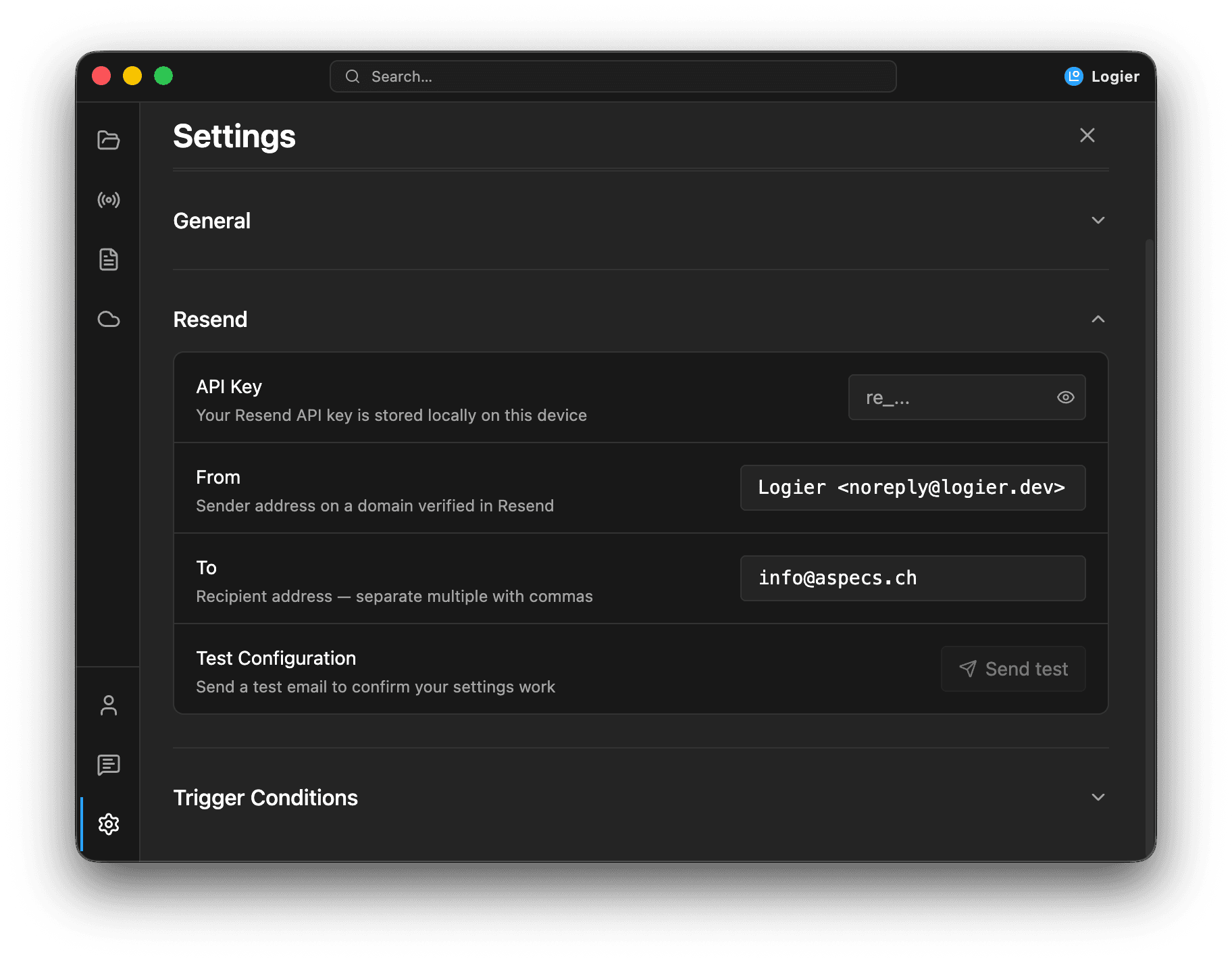
Under Resend, fill in three fields:
- —API Key — your Resend key. Paste it in; use the eye icon to reveal it if you need to check it.
- —From — the sender address, e.g.
Logier <alerts@yourdomain.com>. It must be on a domain you've verified in Resend, otherwise Resend will reject the send. - —To — where alerts are delivered. Logier pre-fills your account email, but you can change it. Separate multiple recipients with commas.
3. Send a test email#
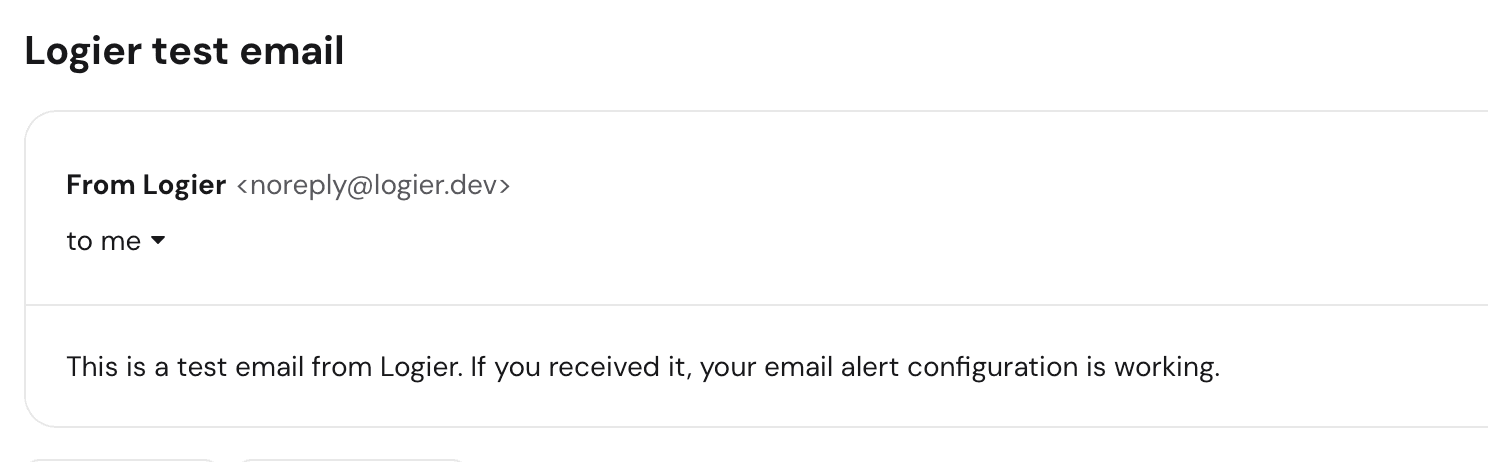
Use Send test under Test Configuration to confirm everything works. Logier sends a test message to your To address and reports success or the exact error Resend returned. The button stays disabled until an API key, sender, and recipient are all filled in.
Choosing what triggers an alert#
Open the Trigger Conditions section to pick which log severities send an email. Logier folds each log line's level into one of three buckets, so a rule stays meaningful no matter how the log formats its levels (error vs E vs FATAL):
- —Errors — lines parsed as error, fatal, or critical.
- —Warnings — lines parsed as warning.
- —Info — all other lines (info, notice, debug, trace).
By default only Errors trigger an alert, which is usually what you want. Enable Warnings or Info only if you need broader coverage — Info in particular will match almost every line on a busy stream.
Cooldown#
The Cooldown setting is the minimum number of seconds between alert emails. It defaults to 60 and can be anything from 0 to 86400 (24 hours).
A cooldown matters because a live stream can produce hundreds of matching lines in a moment. Rather than one email per line, Logier sends a single summary and then stays quiet until the cooldown passes — so a noisy incident doesn't bury your inbox.
What an alert email contains#
When matching lines arrive and the cooldown has passed, Logier sends one email that summarizes the batch:
- —A subject line with the count and severities, e.g.
Logier alert: 12 Errors log line(s). - —A short intro with the count, the severities, and the time.
- —Up to ten sample lines from the batch, followed by “…and N more” if there were additional matches.
Logier also shows an in-app notification confirming the alert was sent, or explaining why it failed.
Every email Logier sends — alerts, the test send, and anything the Copilot mails for you — uses the same card layout, with a plain-text version alongside it for clients that don't render HTML.
Asking the Copilot to send one#
The settings on this page also power the Copilot's send_email tool, so you can email a slice of a log without setting up a trigger at all:
Filter for all errors caused by the payment service and email them to me.
That works on any open log file, not just the Live Stream, and it doesn't need the Enable Email Alerts toggle — only the Resend credentials below it. The Copilot only ever sends to the recipient configured here or an address you type in the chat yourself. See Copilot Tools for the details.
How alerts are evaluated#
A few details are worth knowing so the behavior isn't surprising:
- —Live Stream only — alerts are checked against lines as they stream in. Opening a saved log file does not send alerts.
- —One alert per cooldown — the throttle spans the whole session and survives reconnects, so a flapping stream can't send an email per line.
- —Failures retry — if a send fails, Logier clears the cooldown so the next batch can try again rather than sitting silent for the full window.
Best Practices#
- —Start with Errors only, then widen to Warnings if you find you're missing things.
- —Set the From address on a domain you control and have verified in Resend — shared or unverified senders are rejected.
- —Raise the cooldown for chatty streams so a single incident sends one summary instead of a wave of emails.
- —Send a test email after any change to confirm the configuration still works.
Troubleshooting#
The test email fails
Logier shows the reason Resend returned. The most common causes are an invalid API key or a From address on a domain that isn't verified in Resend. Fix the field it points to and test again.
Alerts never arrive
Check that Enable Email Alerts is on, at least one severity is selected under Trigger Conditions, and you're running the desktop app with an active Live Stream. Also confirm the matching lines actually appeared while the stream was connected.
I'm getting too many emails
Increase the Cooldown, or narrow the trigger severities to Errors only.
Alert settings across devices#
With Settings Sync switched on, your alert configuration is shared between your machines — the sender and recipient addresses, which severities trigger an email, and the cooldown.
Closing#
With email alerts configured, Logier can watch a live stream for you and reach out the moment something matches — turning a log you'd otherwise have to babysit into one that tells you when it needs attention.