Command Palette
Jump to any file, tab, or report and run app commands without leaving the keyboard — all from the search box in Logier's title bar.
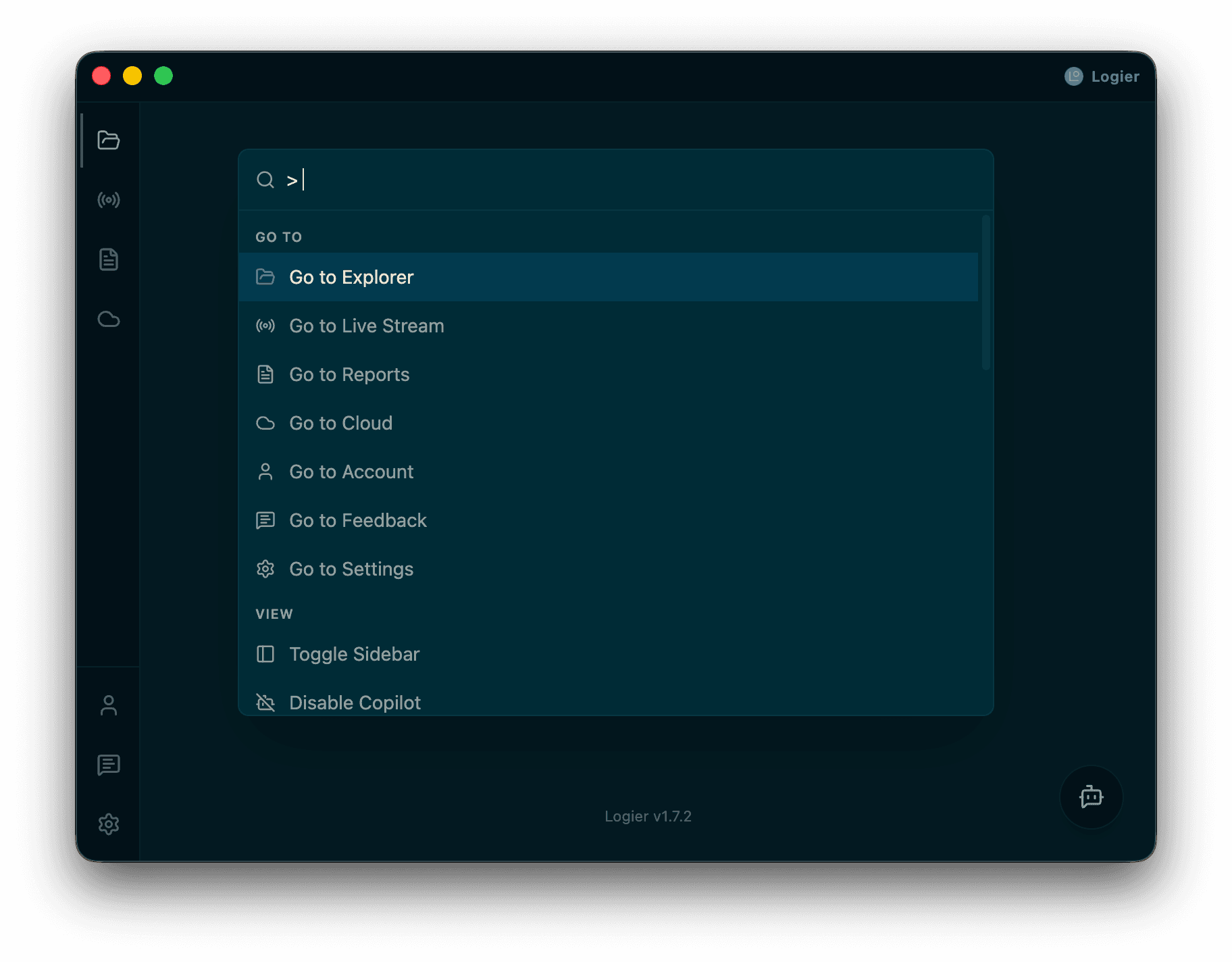
Logier keeps a single search field in the title bar that does two jobs. Start typing and it finds your open tabs, files, and reports. Type a > first and the same box becomes a command runner for switching themes, toggling panels, changing your language, and more.
The field lives in the title bar permanently rather than popping up as a separate dialog, so it always feels like the same box expanding downward. You can open it with the keyboard from anywhere in the app, or just click into it.
Because every command runs through Logier's shared state, it behaves the same no matter which page you're on.
Opening the palette#
There are three ways to open it:
- —Click the search box in the title bar.
- —Press
Ctrl + P(⌘ + Pon macOS) to open it in Quick Open mode — files, tabs, and reports. - —Press
Ctrl + Shift + P(⌘ + Shift + Pon macOS) to open it in Command mode, pre-filled with>.
Both modes share the same box. Quick Open switches to Command mode the moment you type > at the start, so you never have to reopen anything. Pressing the same shortcut again closes the palette.
Quick Open: finding files, tabs, and reports#
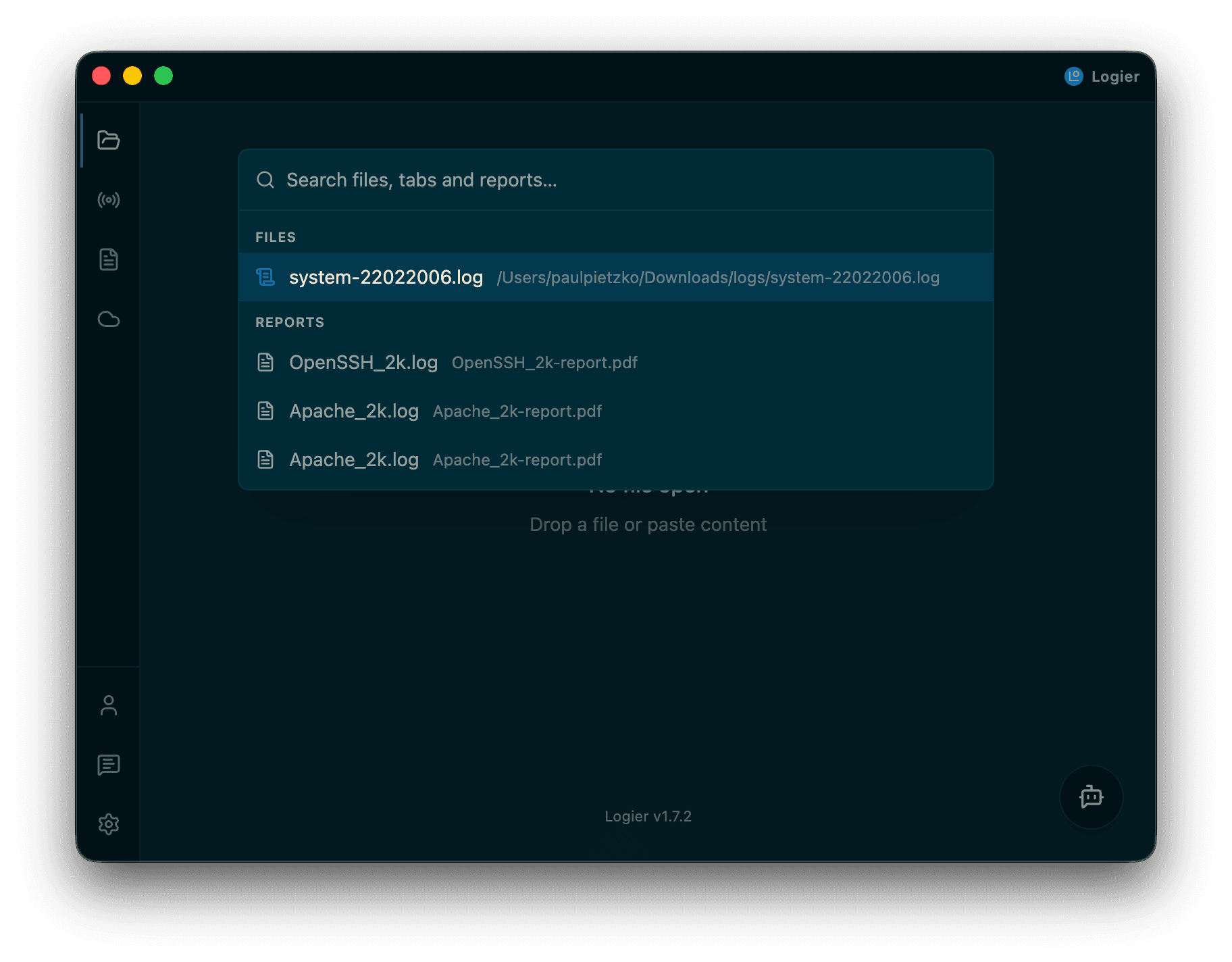
With the box empty (or after clearing the >), Quick Open searches across three groups, in this order:
- —Open tabs — files you already have open in the editor.
- —Files — files in your explorer tree that aren't open yet. Selecting one opens it.
- —Reports — analysis reports you've generated.
Matching is fuzzy, so you don't need to type a name exactly. A contiguous match — especially at the start of a name — ranks above scattered letters, so the obvious result floats to the top.
Select an item with the arrow keys and press Enter to open it. Cloud files show a cloud icon so you can tell them apart from local logs.
Command mode: running actions#
Type > to switch to commands. The search box enters command mode automatically when you open it with Ctrl + Shift + P. Commands are grouped into sections:
- —Go to — jump to the Editor, Live, Reports, Log Formats, Cloud, Account, Feedback, or Settings pages.
- —View — toggle the sidebar, enable or disable Copilot, enable or disable notifications, or reload the window.
- —File — open a file, create a new scratch file, print the current log, close the current tab, or close all tabs.
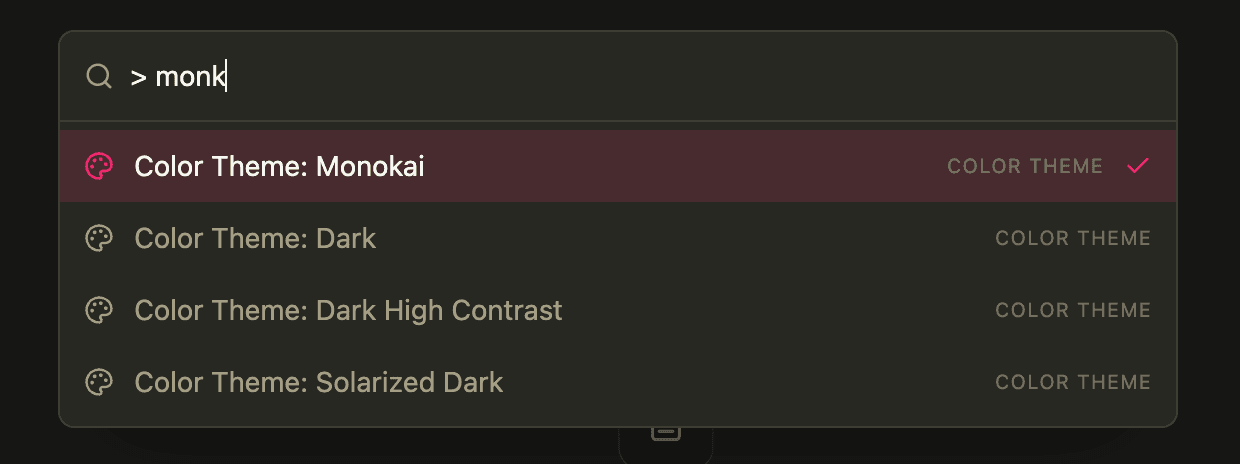
- —Color Theme — switch between the system theme, built-in themes, and any custom themes you've created.
- —Language — switch Logier's display language.
- —Help — reopen the Welcome tab, or jump to the Release Notes for what's changed recently.
Commands that reflect a current setting — your active theme or language — show a checkmark, so you can always see what's selected. Select a command and press Enter to run it immediately.
Go to Log Formats takes you to the page where custom schemas live, the same place the format switcher opens when a log doesn't parse. See Custom Log Formats.
Live theme preview#
When you arrow through the color themes, Logier repaints the whole app to preview each one as it's highlighted. Nothing is saved until you press Enter on a theme. Move focus away or close the palette and the preview reverts to your current theme.
This lets you try several themes quickly and only commit to the one you like.
Keyboard navigation#
The Command Palette is designed to be used entirely from the keyboard. Once it's open:
- —
↑/↓— move between results - —
Home/End— jump to the first or last result - —
Enter— run the highlighted item - —
Esc— close the palette
Understanding fuzzy search#
The Command Palette doesn't require exact matches. Searching for part of a filename or a few matching characters is often enough to find the right result.
Logier prioritizes, in order:
- —Exact matches
- —Matches at the beginning of names
- —Word-start matches
- —Close character sequences
This lets you locate files quickly, even in large workspaces.
Best Practices#
- —Reach for
Ctrl + Pto hop between open logs instead of clicking tabs. - —Use
Ctrl + Shift + Pwhen you can't remember where a setting lives — most of them are one command away. - —Preview a few themes back-to-back before committing; the app repaints live as you arrow through them.
Troubleshooting#
The palette shows no results
In Quick Open, results come from your open tabs, explorer tree, and reports. If a file isn't in your tree yet, open its folder first, or use the Open File command. In Command mode, make sure the query still starts with >.
The UI feels stuck
Run the Reload Window command from Command mode. It reloads the interface without restarting Logier — the same as a fresh window.