Keyboard Shortcuts
Learn Logier's default keyboard shortcuts and remap any of them to match your workflow.
Most everyday actions in Logier have a keyboard shortcut, so you can open files, switch tabs, toggle panels, and open the Command Palette without reaching for the mouse.
Shortcuts adapt to your platform automatically. On macOS they use ⌘; on Windows and Linux the same shortcuts use Ctrl. Throughout this article, Cmd/Ctrl means "whichever your platform uses."
Every shortcut can be remapped from settings, so you can adapt Logier to muscle memory you already have.
Navigation and palette#
- —
Cmd/Ctrl + P— Quick Open: search and open a tab, file, or report - —
Cmd/Ctrl + Shift + P— Command Palette: run a command, change theme, toggle settings, and more
Tabs#
- —
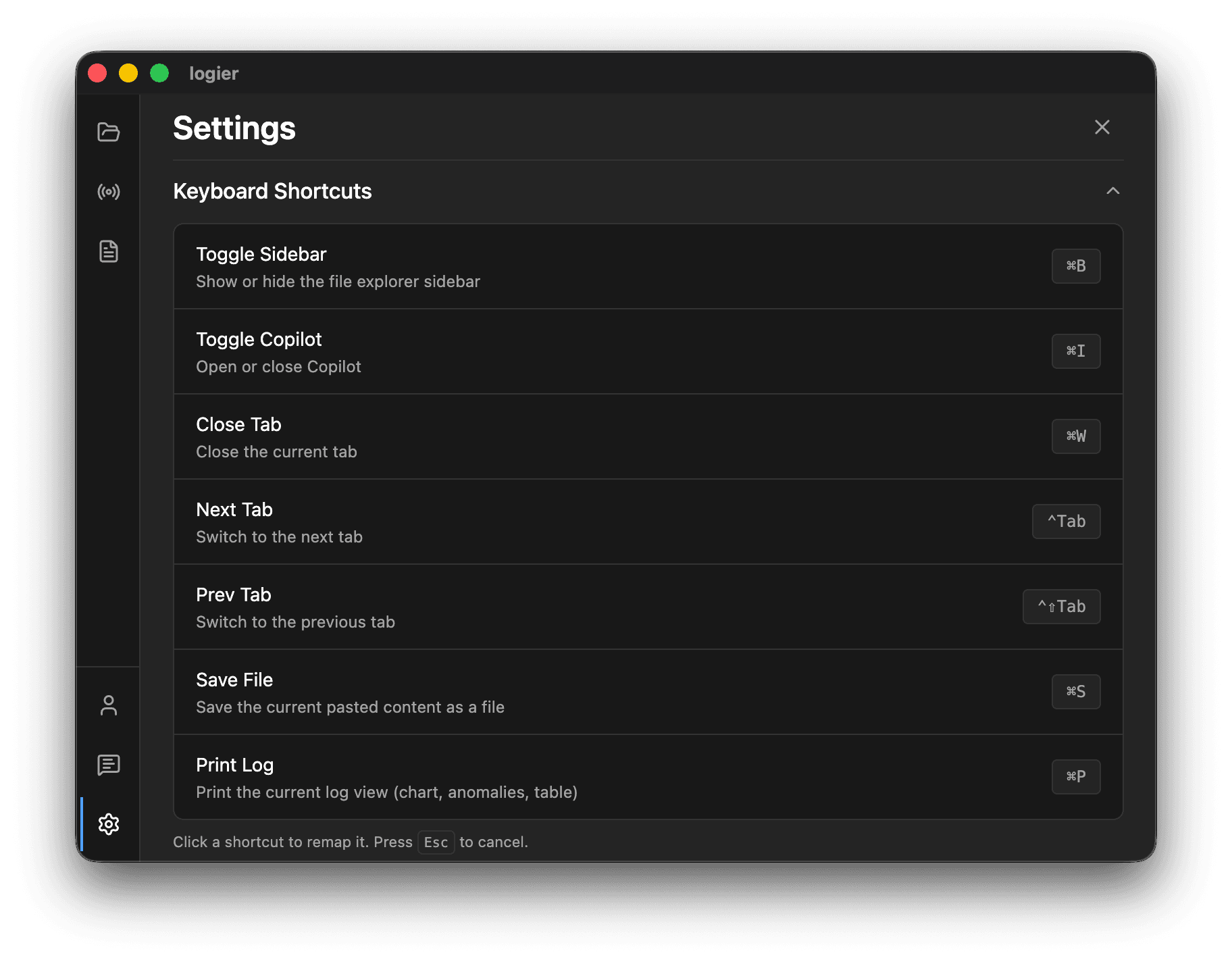
Ctrl + Tab— switch to the next tab - —
Ctrl + Shift + Tab— switch to the previous tab - —
Cmd/Ctrl + W— close the current tab
The tab-switching shortcuts use the literal Ctrl key on every platform, including macOS, matching how most editors handle tab cycling.
Files#
- —
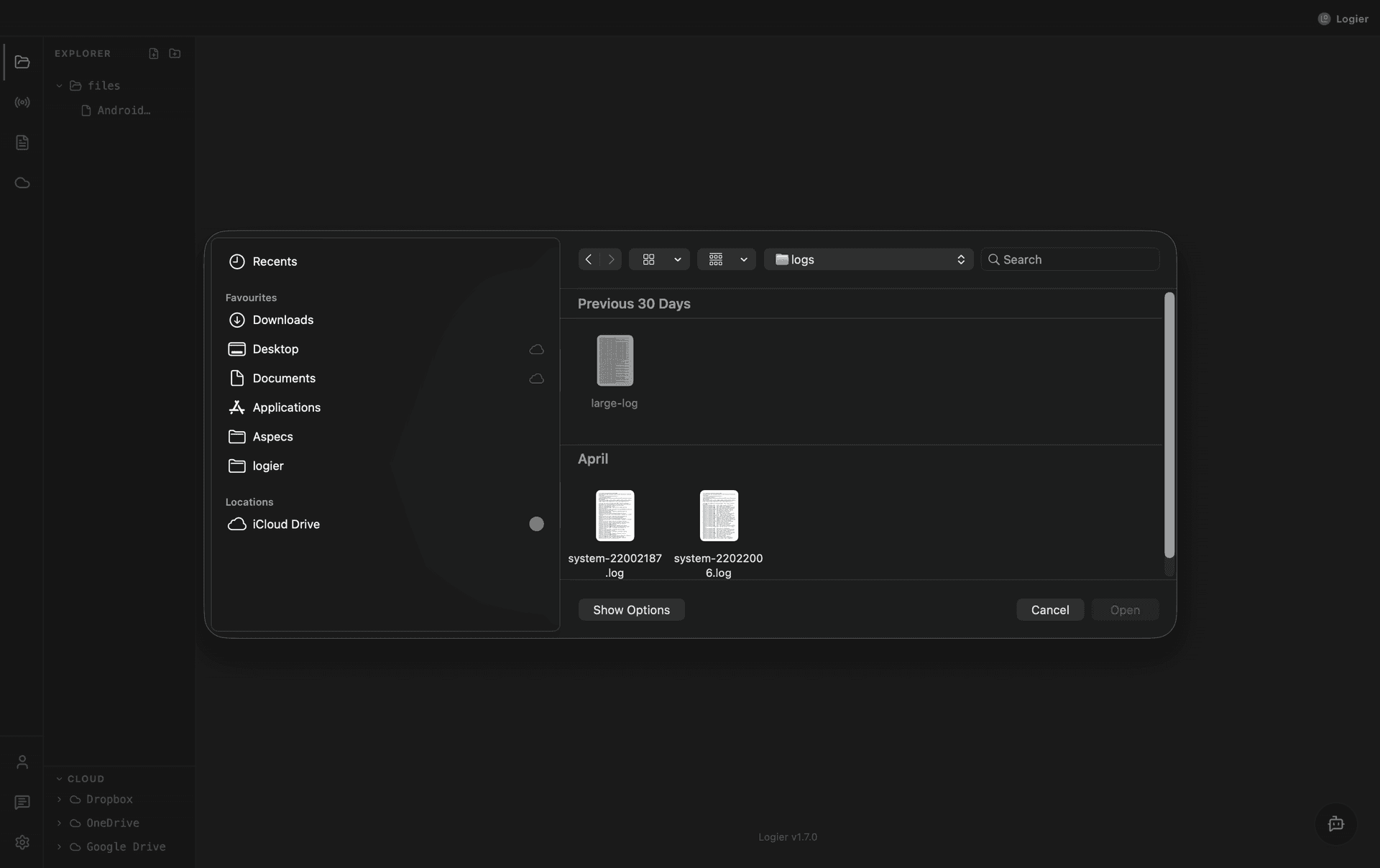
Cmd/Ctrl + O— open a log file - —
Cmd/Ctrl + Shift + O— open a folder - —
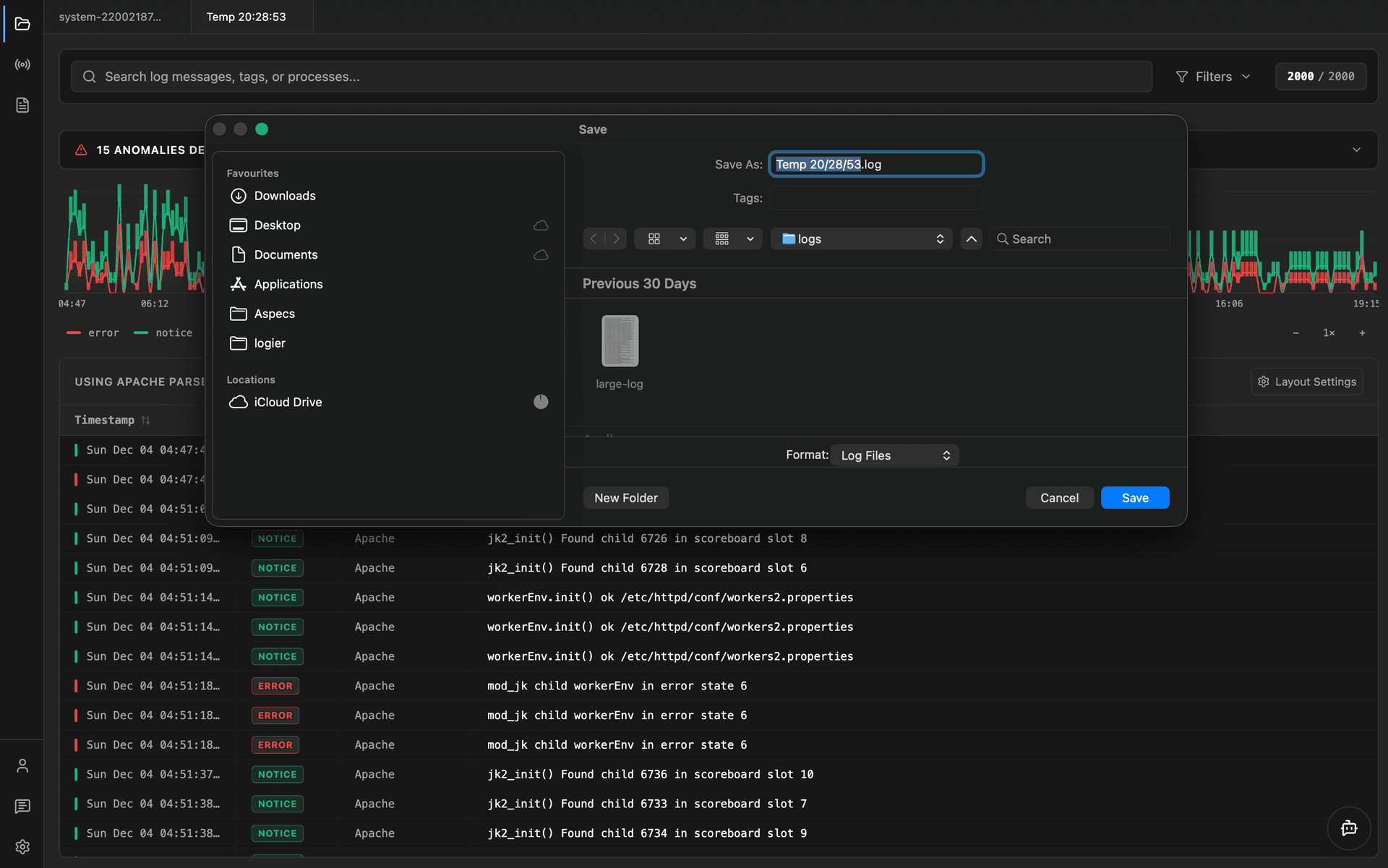
Cmd/Ctrl + S— save the current pasted content as a file - —
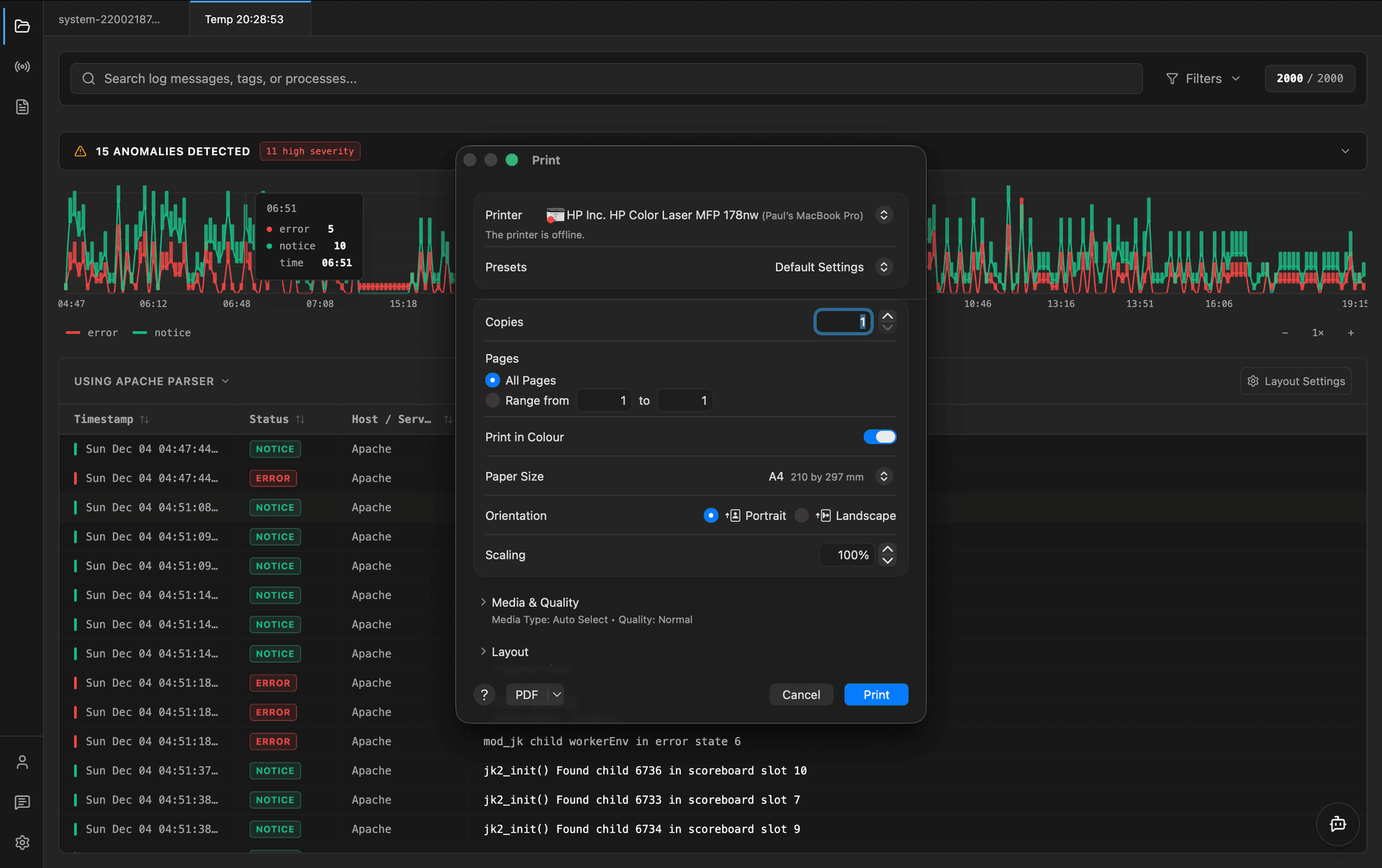
Cmd/Ctrl + Alt + P— print the current log view (chart, anomalies, table)
Panels#
- —
Cmd/Ctrl + B— show or hide the current page's sidebar (the file explorer, or the Reports, Log Formats, or Cloud panel, whichever page you're on) - —
Cmd/Ctrl + I— open or close Copilot
Why print uses a different chord#
Printing is Cmd/Ctrl + Alt + P rather than the more common Cmd/Ctrl + P. In Logier, Cmd/Ctrl + P opens Quick Open, so print moves one modifier over to keep the two from firing on the same key press.
Customizing shortcuts#
You can remap any shortcut to a combination that suits you.
- Open
Settings → General → Keyboard Shortcuts. - Click the shortcut you want to change.
- Press the new key combination.
- Press
Escto cancel without changing it.
Each row shows what the shortcut does, so you always know what you're rebinding, and your changes apply throughout the app immediately.
Resetting shortcuts#
Your remapped shortcuts are part of Settings Sync, so once you have them the way you like, you can carry them to your other machines instead of setting them up again.
If you've customized shortcuts and want to go back:
- —Reset a single shortcut from its row in the settings list.
- —Use Reset all to restore every shortcut to its default at once.
The Reset all button only appears once you've changed at least one shortcut.
Best Practices#
- —Keep
Cmd/Ctrl + PandCmd/Ctrl + Shift + Pon their defaults — almost everything else is reachable through them. - —When remapping, avoid combinations your operating system already reserves.
- —If a shortcut stops working after remapping, reset it and try a different combination.
Troubleshooting#
My new shortcut doesn't trigger
The combination may be claimed by your operating system or another app. Open Settings → General → Keyboard Shortcuts, reset that shortcut, and pick a different combination.
I want the original keys back
Reset the individual shortcut from its row, or use Reset all to restore every default.