MCP Tools
Understand the tools Copilot can call to analyze the whole log file, generate reports, drive the filters, define log formats, and send email for you.
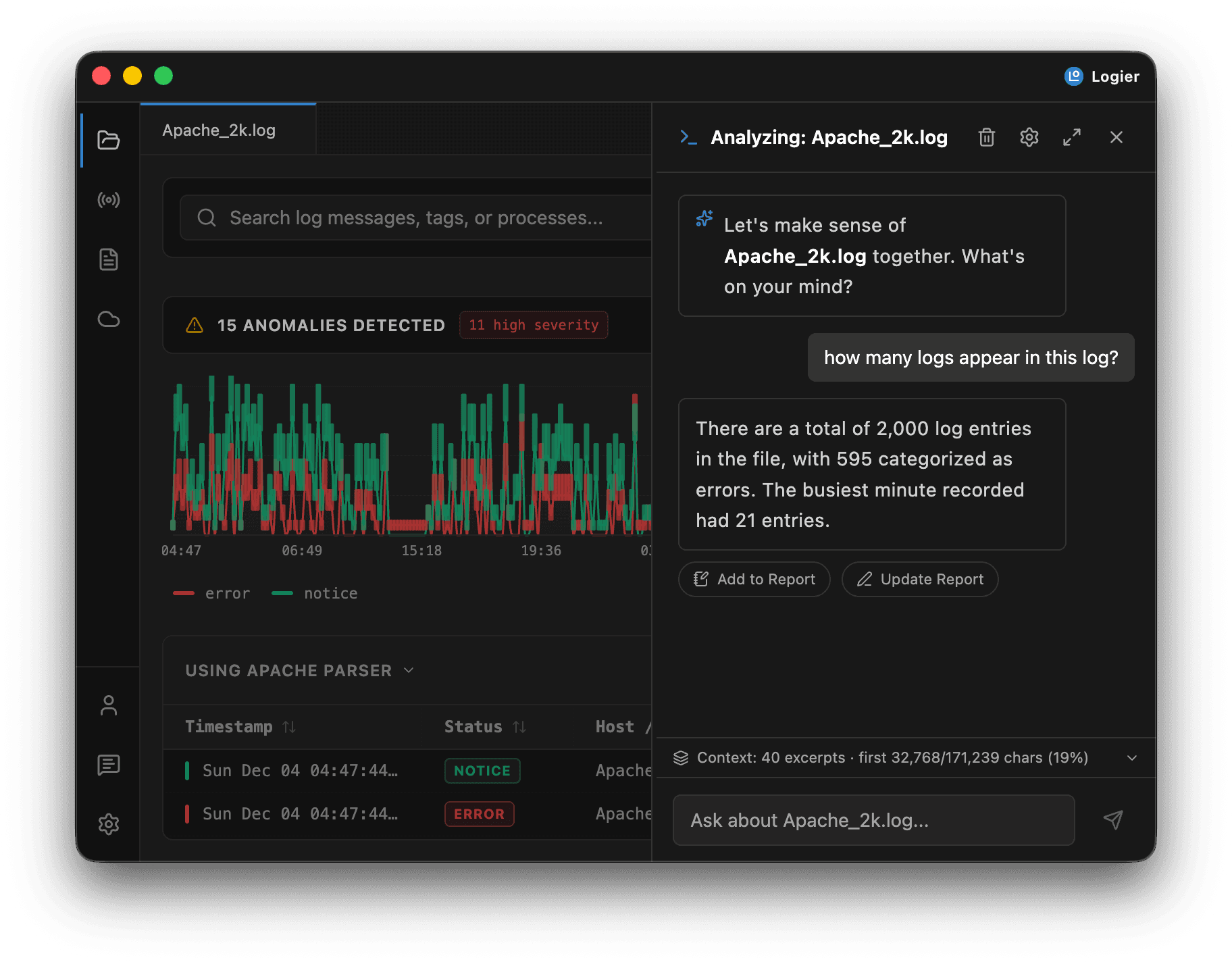
Logier's Copilot can do more than talk about your logs — it can act on them. Behind the chat sits a small set of tools that let the model run exact analysis over the entire open file and change what you see on screen.
This matters because the Copilot's chat context only holds an excerpt of a large log — as much as fits in its token budget. The tools bypass that limit: they read the complete parsed file, so counts, statistics, and anomaly detection are exact rather than estimated from a preview.
You never call these tools yourself. You ask in plain language, and the Copilot decides which tool fits. This article explains what each one does so you know what to expect.
Tools run locally inside Logier. Your log data stays within your configured environment and is only shared with your selected AI provider according to your provider settings.
The available tools#
Logier ships with eight Copilot tools, grouped by what they're for.
Generate report#
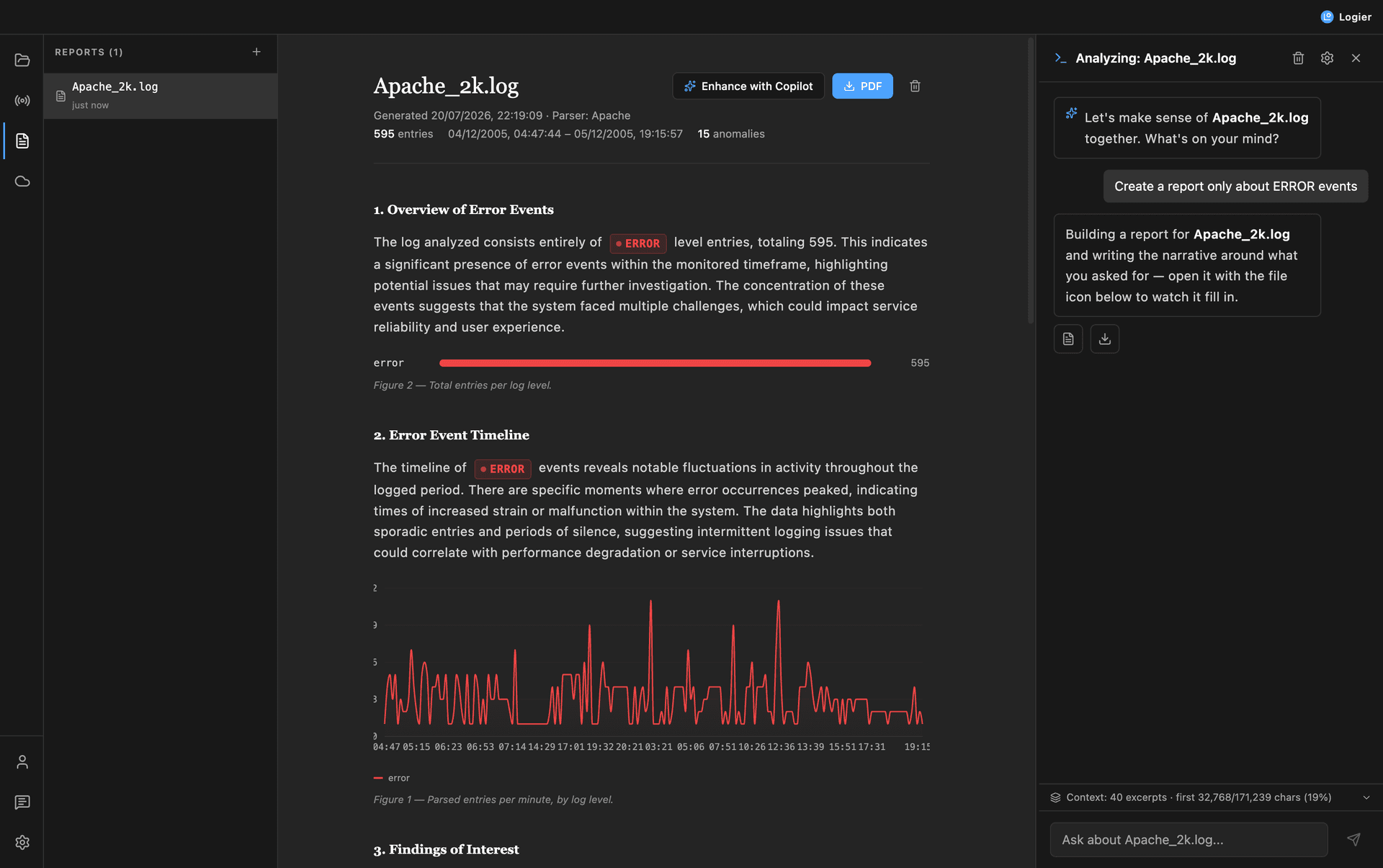
Builds and opens a full log-analysis report for the file you have open — complete with statistics, charts, and findings — then writes a narrative summary into it. Backed by generate_report.
Ask for it naturally:
Write a report focusing on the database timeouts.
You can scope a report to certain levels ("only about errors"), and the Copilot passes that through so the whole report — numbers included — covers just those entries.
Detect anomalies#
Runs Logier's built-in anomaly detection over the complete file — the same engine behind a report's findings. It surfaces frequency spikes, brand-new error signatures, silence gaps, and duration outliers, ranked by severity. Backed by detect_anomalies.
What stands out in this log?
Get log stats#
Computes exact statistics for the whole file: which parser was used, total entries, the time range covered, per-level counts, error counts, the busiest minute, and anomaly counts. Backed by get_log_stats.
How many errors are there, and what time span does this cover?
Apply filters#
Drives the same filters as the sidebar — level visibility, the search box, and a recent time window — so the table and chart update on screen. It changes what you see; it doesn't return log data. Backed by apply_filters.
Show only errors from the last 15 minutes.
Three tools work together so the Copilot can teach Logier a log format it doesn't already recognize — the same job the Custom Log Formats page does by hand.
List formats#
Tells the Copilot which built-in parsers and saved custom schemas already exist, so it can check whether a fitting format already exists before drafting a new one. Backed by list_schemas.
Do I already have a format for this kind of log?
Draft schema#
Tests a candidate pattern against your actual open file and reports back exactly what happened: the match rate, what each field captured, and which lines failed and why. Nothing is saved at this point — it's a scratchpad the Copilot iterates on, revising the pattern and calling it again until the match rate looks right. Backed by draft_schema.
This log doesn't parse — can you write a format for it?
Save schema#
Persists a pattern the Copilot has already verified with Draft schema, applies it to the open log, and adds it to the format switcher — exactly as if you'd saved it yourself on the Custom Log Formats page. Backed by save_schema.
Figure out the format for this file and save it as "Payments service log".
Send email#
Emails the matching log entries to the recipient you configured under Settings → Email, using the same Resend setup as the live-stream alerts. The mail quotes the entries and says how many matched in total. Backed by send_email.
Filter for all errors caused by the payment service and email them to me.
Scope it however you like — by level, by search term, or both. If you don't scope it, the Copilot uses whatever the log view is currently filtered to, so this works naturally as a follow-up to a filter request.
Two things it deliberately won't do:
- —Send with no configuration. It needs your Resend API key, sender, and recipient in
Settings → Emailfirst. The "Enable Email Alerts" toggle is not required — that one only governs the automatic alerts. - —Mail an address it found in your log file. Logier only sends to addresses you configured in settings or typed yourself in the chat. A log line containing an address is not permission to send there.
Query tools vs. action tools#
The tools fall into two kinds, and it's worth knowing the difference:
- —Query tools (
get_log_stats,detect_anomalies,list_schemas,draft_schema) read the file and hand the results back to the Copilot, which then answers you in its own words or keeps iterating. - —Action tools (
generate_report,apply_filters,save_schema,send_email) change something in the app or the world — a new report, the on-screen filters, a saved format, or an email going out — rather than returning data to the chat.
Either way, you interact with the Copilot in natural language. The tool mechanics stay behind the scenes.
How Copilot uses tools#
When you ask Copilot a question, the process looks like this:
- Copilot understands your request.
- It decides whether additional analysis is required.
- It calls the tools it needs.
- The tools analyze the complete log data.
- Copilot uses the results to answer your question or build a report.
If a tool request comes back in the wrong format, Logier detects it, explains the problem to Copilot, and lets it retry — so a temporary formatting mistake never interrupts your investigation.
Turning tools on and off#
Every tool can be enabled or disabled individually.
- Open
Settings → Copilot → Copilot Tools. - Toggle any tool off to stop the Copilot from discovering or calling it.
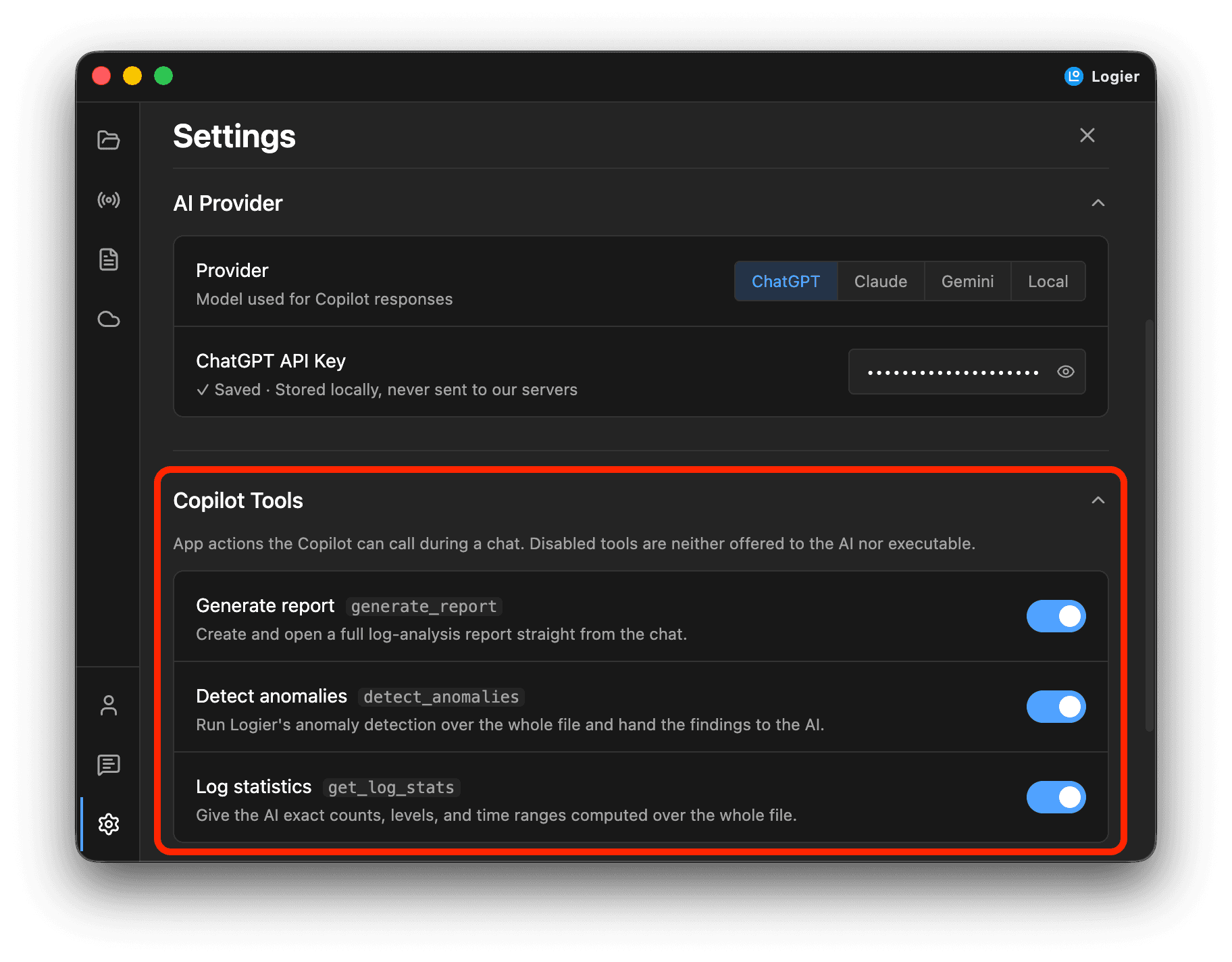
The list is generated from the tools Logier actually has registered, so it always reflects what's available. A disabled tool is removed from Copilot's capabilities and can't be used during analysis.
A tool can also appear greyed out on its own, before you touch anything, if it needs setup Logier can't do for you. Send email, for instance, stays off until a Resend API key, sender, and recipient are filled in under Settings → Email — a "Set it up" link on the row takes you straight there.
When a tool needs an open file#
Most of these tools operate on the file you have open, so they're only available when there's an active log. list_schemas is the one exception — it describes the app's available formats rather than a specific file, so the Copilot can answer "what formats do you support?" with nothing open. Ask for a report, statistics, or a drafted schema with no file open, and the Copilot will let you know there's nothing to analyze. Open a log first, then ask again.
Why the tools read the whole file#
The Copilot's chat context is limited, and on a large log it only ever sees a slice of the lines. If it counted errors or judged a time span from that slice alone, the numbers would be guesses.
The tools exist to give the model ground truth: they run over the complete parsed file using the same engines that power Logier's reports and filters. That's why a tool-backed answer ("there are 4,812 errors") is trustworthy in a way a context-only answer wouldn't be.
Best Practices#
- —Ask for exact numbers explicitly when you need them — that nudges the Copilot toward
get_log_statsinstead of estimating. - —Describe the goal instead of requesting a specific technical action; Copilot picks the right tools.
- —Let the Copilot filter the view for you ("show only warnings") instead of switching to the sidebar mid-conversation.
- —When a log won't parse, just ask the Copilot to figure out the format rather than opening the schema builder yourself — it iterates against the real file until the match rate holds up.
- —Turn off any tool you don't want the Copilot to use in
Settings → Copilot → Copilot Tools.
Troubleshooting#
The Copilot won't generate a report or stats
These tools need an open log file. Open one, then ask again.
A tool never seems to run
Check that it's enabled in Settings → Copilot → Copilot Tools, and that Copilot itself is turned on with a working provider or model configured.
The Copilot says it can't send email
Add your Resend API key, sender, and recipient under Settings → Email, then send a test from there to confirm they work. Once the test arrives, ask the Copilot again.
The Copilot keeps saving a schema with a low match rate
It shouldn't — save_schema re-checks the pattern against your file and refuses to overwrite a working format with one that parses badly. If a saved format still isn't matching well, ask the Copilot to keep iterating with draft_schema before saving again, or open it on the Custom Log Formats page and adjust it by hand.