Ways to use Logier
Open logs from anywhere — files, folders, live sources, or your clipboard. Logier gives you multiple ways to start analyzing your data without changing your workflow.
Opening Files in Logier
Logier supports multiple ways to open and inspect your logs. Whether you are working with existing files, live sources, or copied text — you can start analyzing within seconds.
From Explorer / Finder(Open With)#
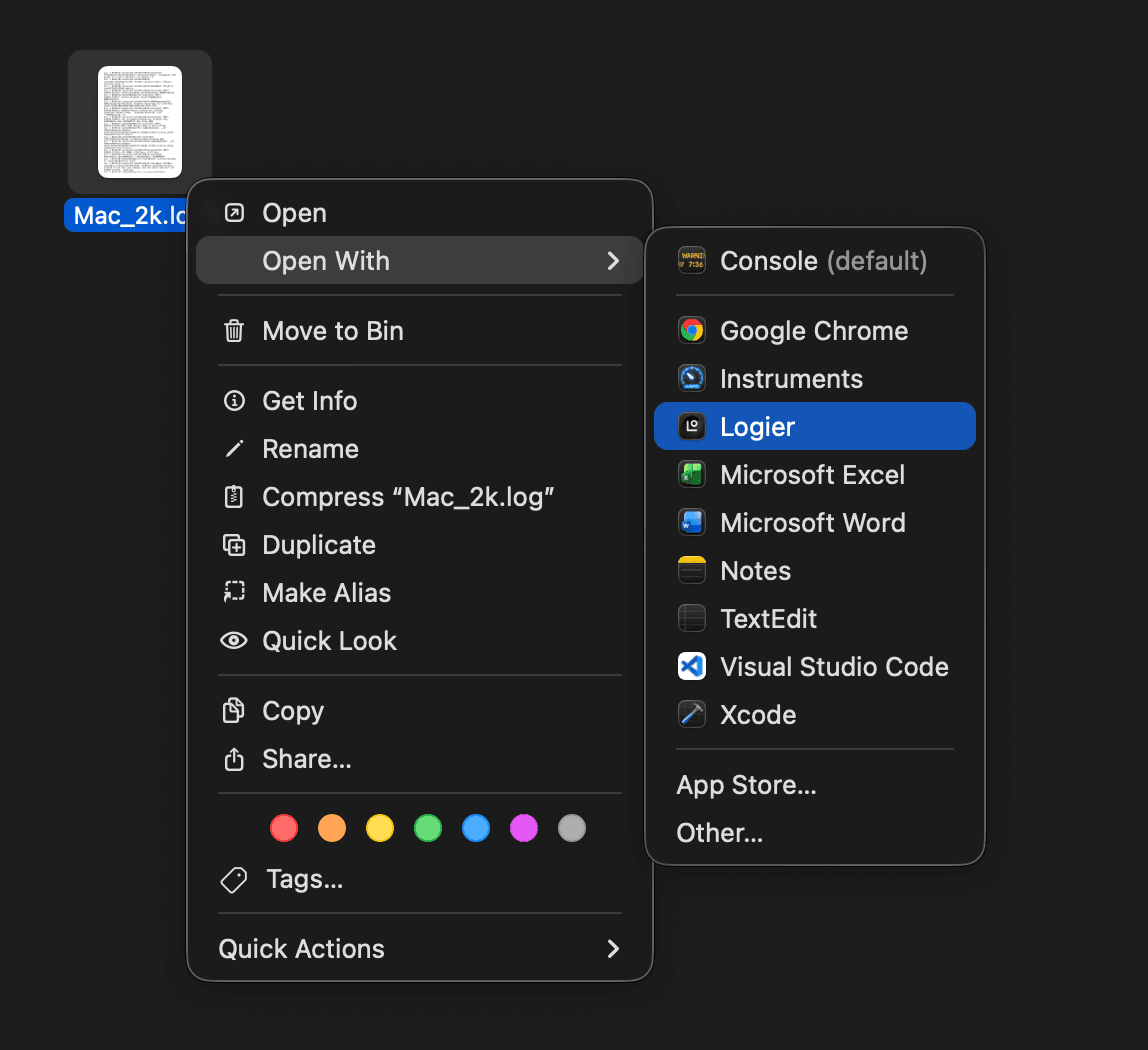
Files can be opened directly from your operating system.
Right-click any .txt or .log file and select Logier from the Open With menu.
If Logier is not listed, you can select Other... and manually choose the Logier application.
This opens the file directly inside Logier.
Using the FileTree#
The optional FileTree gives you a more traditional file-based workflow.
- —Drag & Drop files or folders into the FileTree
- —Use the
Open Filesbutton - —Use the
Open Folderbutton
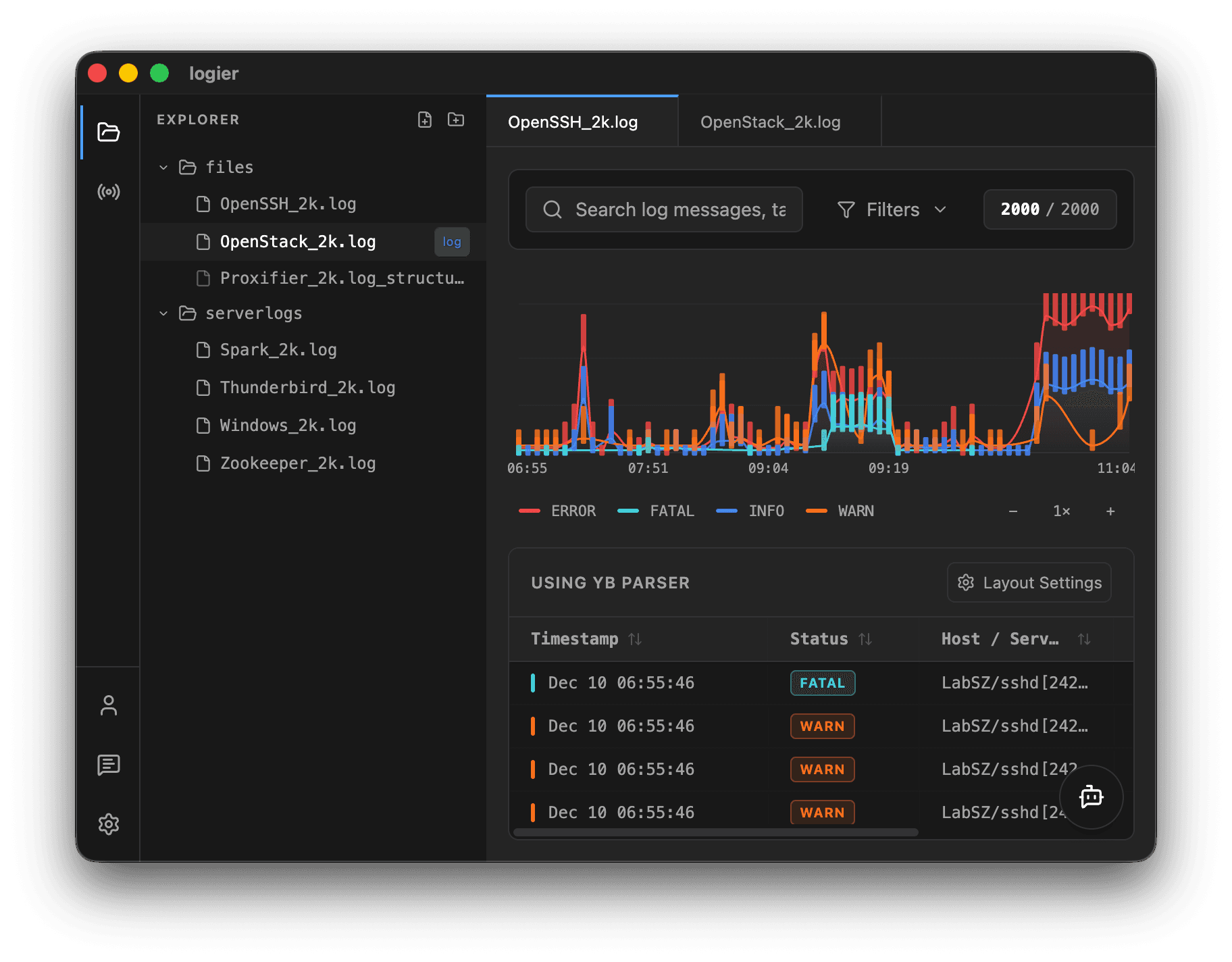
Files opened this way will appear in the FileTree and remain accessible during your session.
From Logier Cloud#
Logier Cloud lets you work directly with files stored in your own cloud storage.
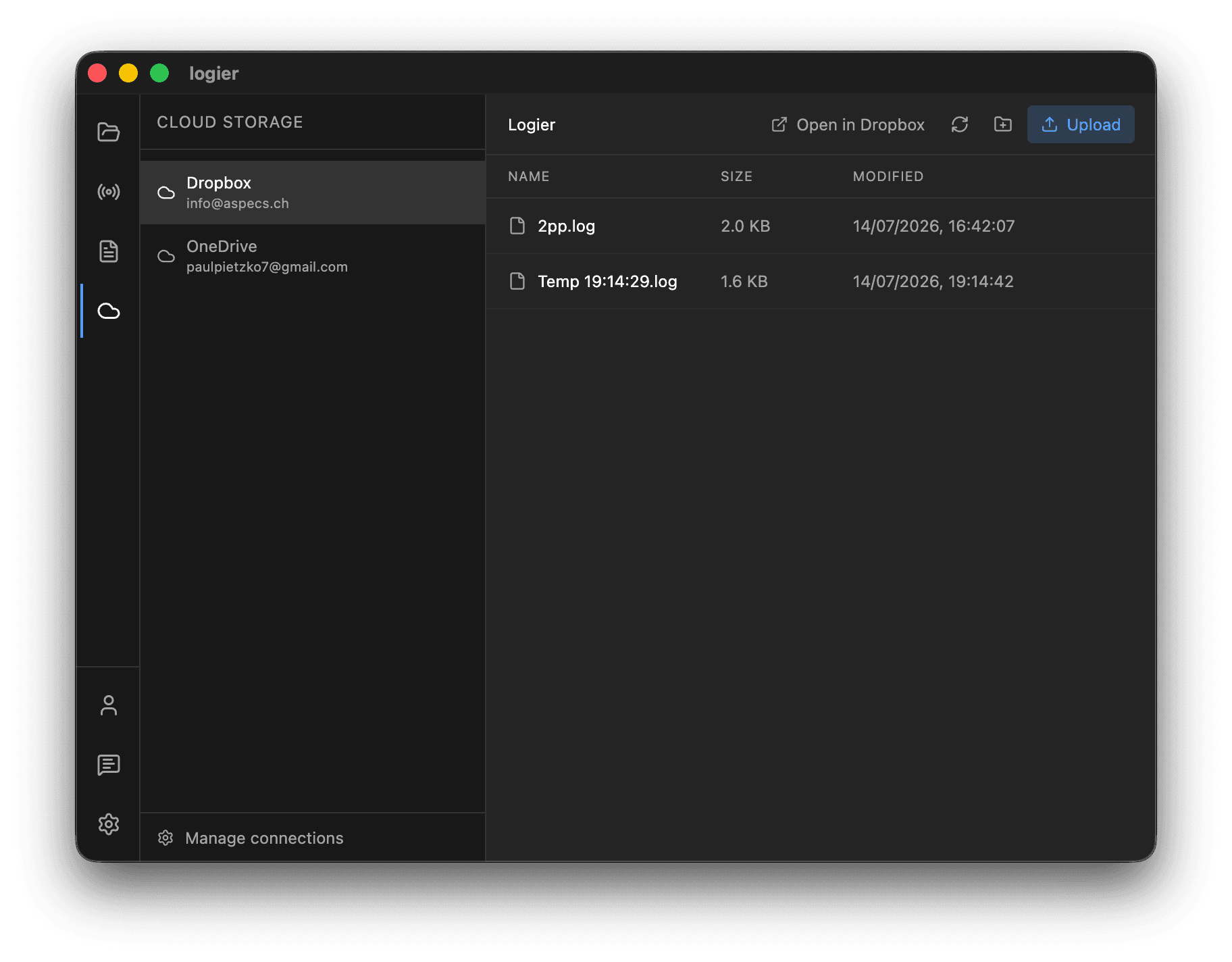
Connect Dropbox, Google Drive, or OneDrive, then browse your dedicated Logier folder without leaving the application. You can:
- —Browse folders
- —Open log files
- —Upload new files
- —Download files
- —Rename files
- —Delete files
- —Create folders
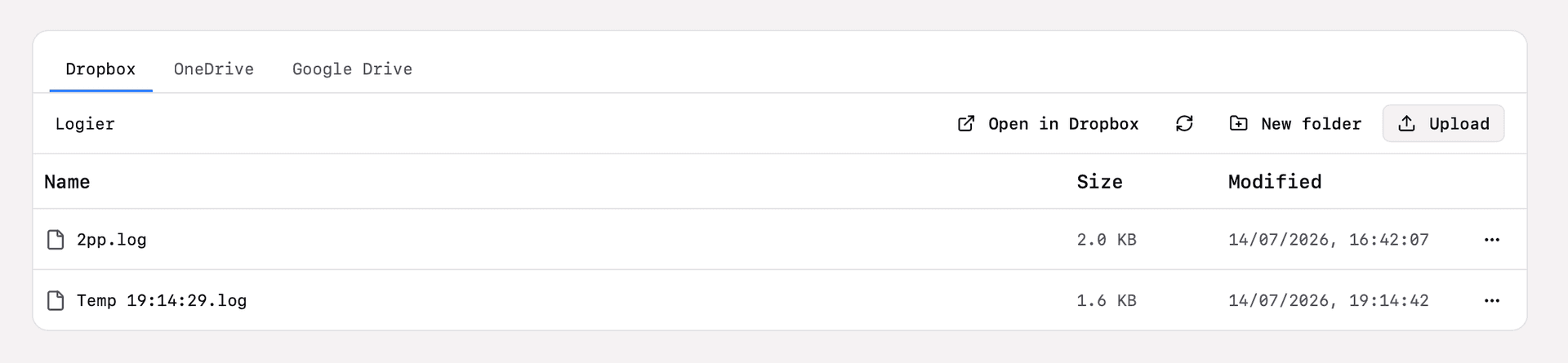
Cloud files open just like local files, and saving writes your changes directly back to your cloud storage. Your files remain in your own account—Logier never stores them.
Drag & Drop into the Editor#
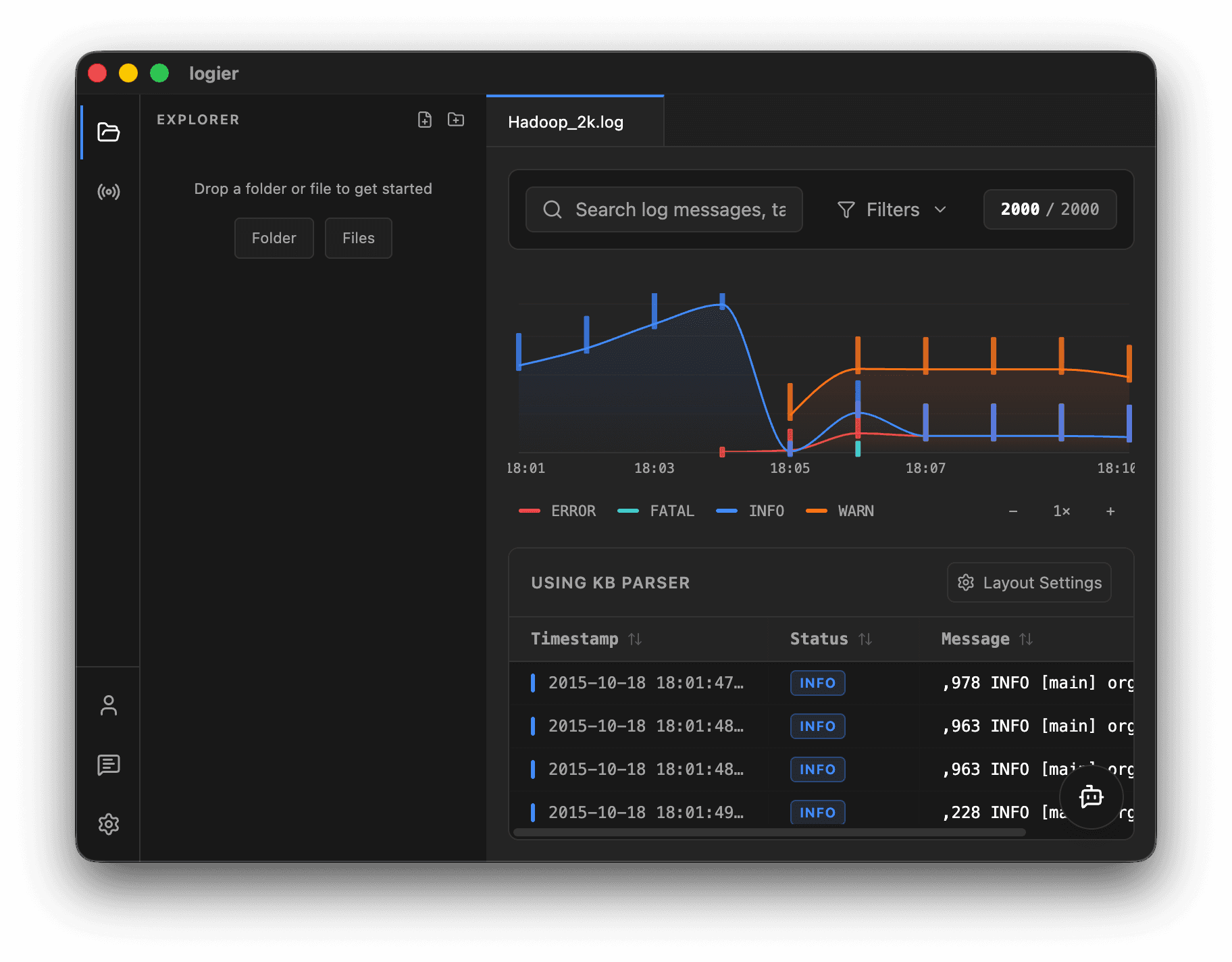
You can also use the native drag and drop functionality of your operating system. Simply drag a log file into the editor area and Logier will open it immediately.
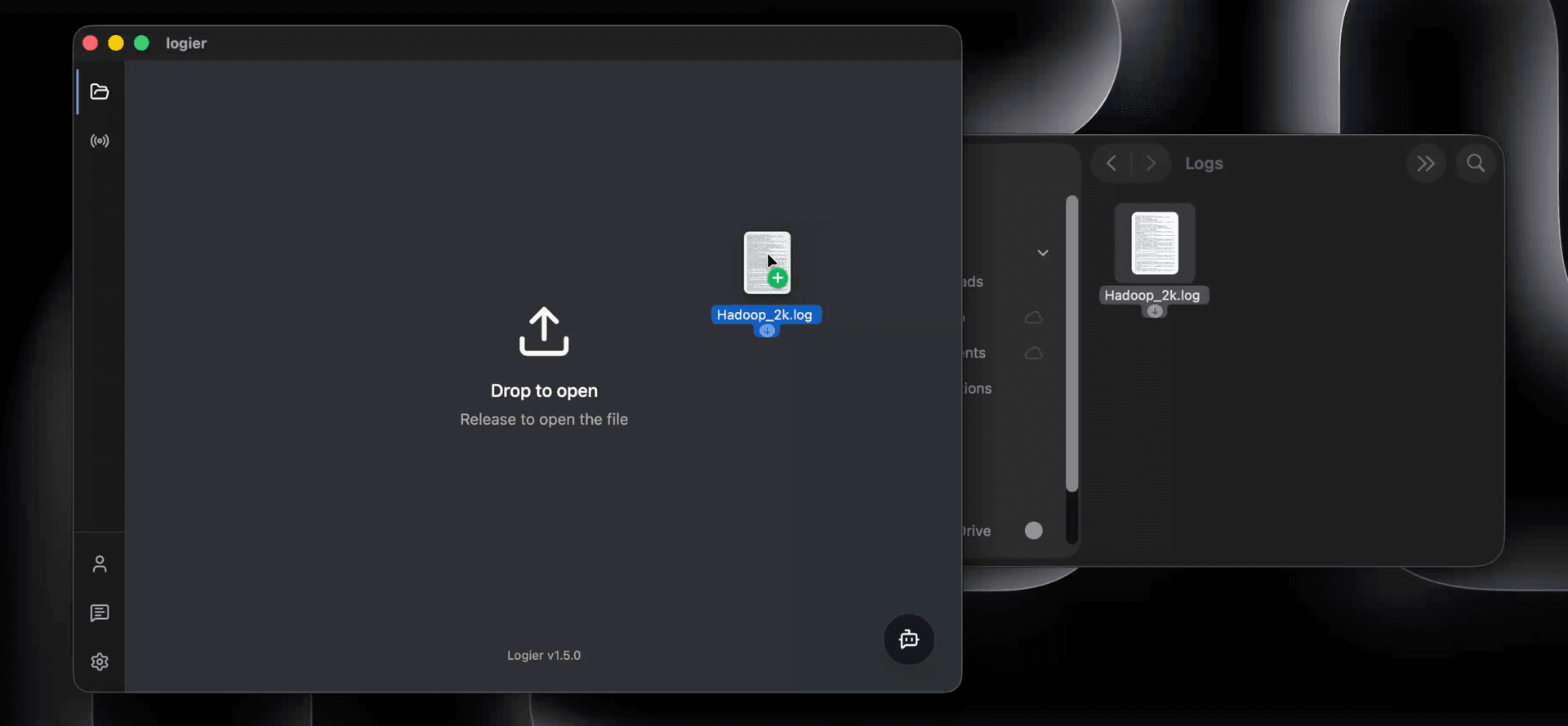
Files opened this way are available in the editor, but will not be added to the FileTree.
Copying Text into the Editor#
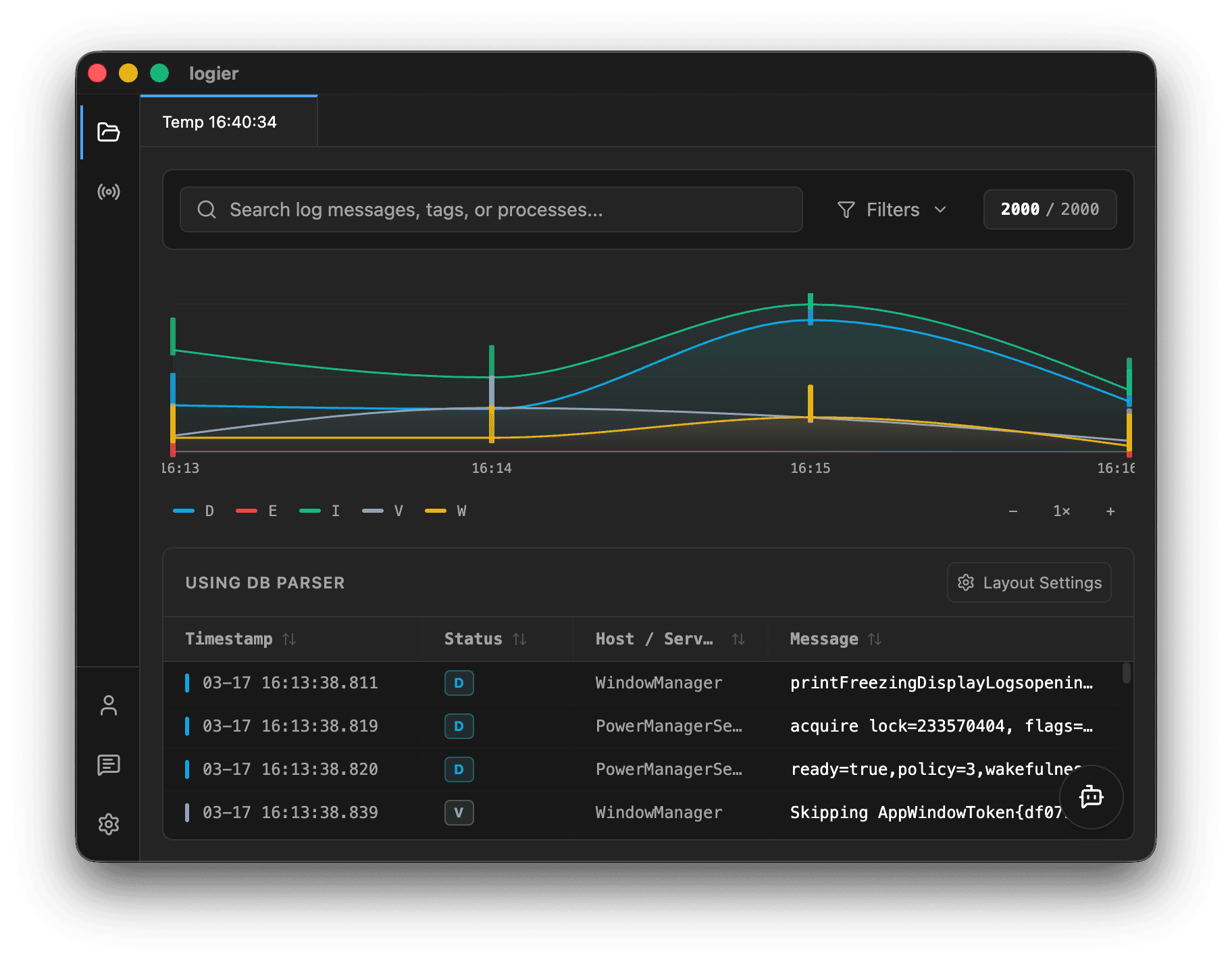
Sometimes you don't have a file — just a few lines of logs. Simply copy logs in any format and paste them directly into the editor.
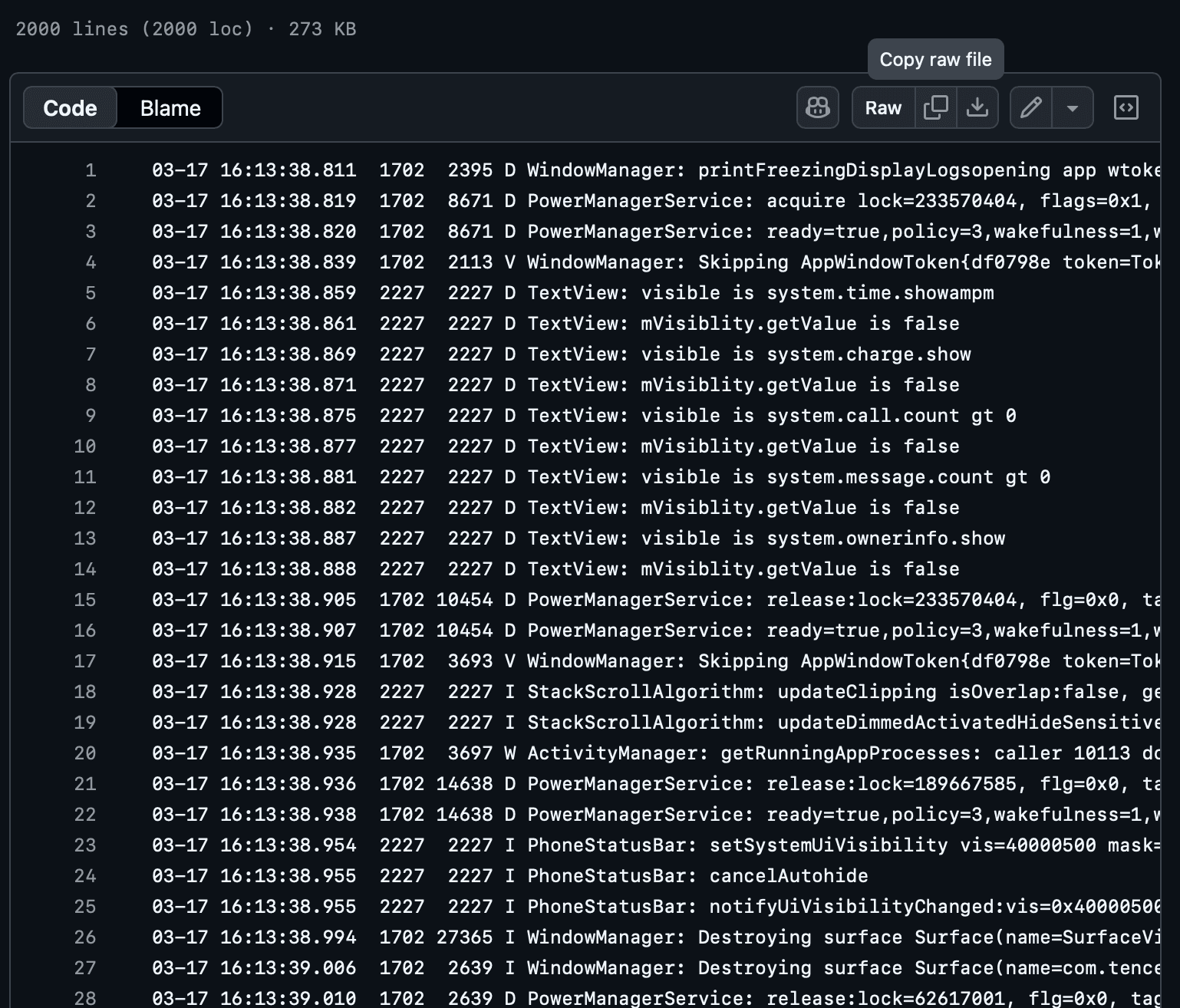
Logier creates a temporary Temp file from the pasted content. These files are session-based and will be removed when closed.
From Live Mode#
Logier can also inspect logs directly from live sources.
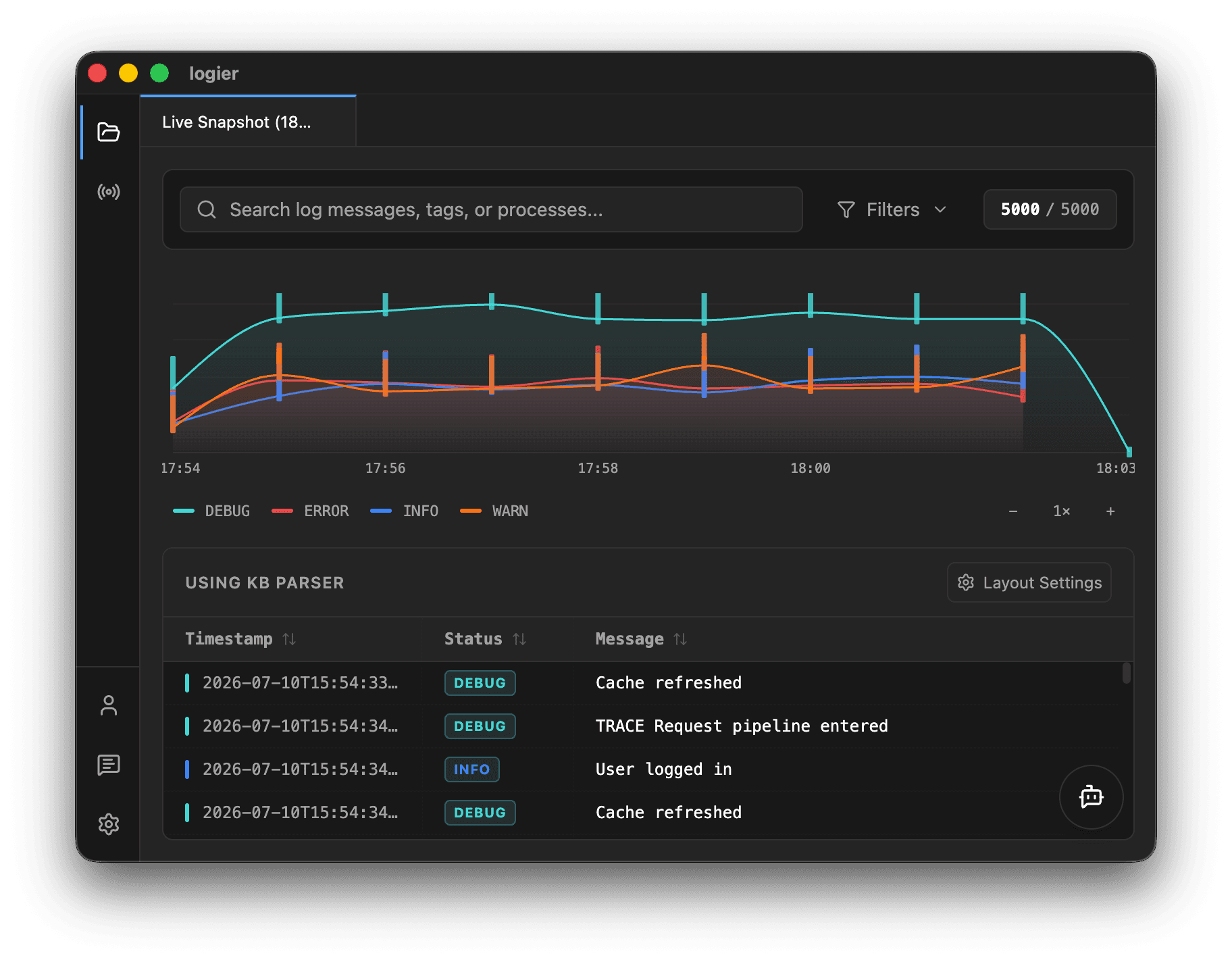
Connect to an API endpoint and stream incoming logs directly into Logier. While inspecting a live source, you can create a snapshot at any time.
A snapshot creates a temporary Live Snapshot file.
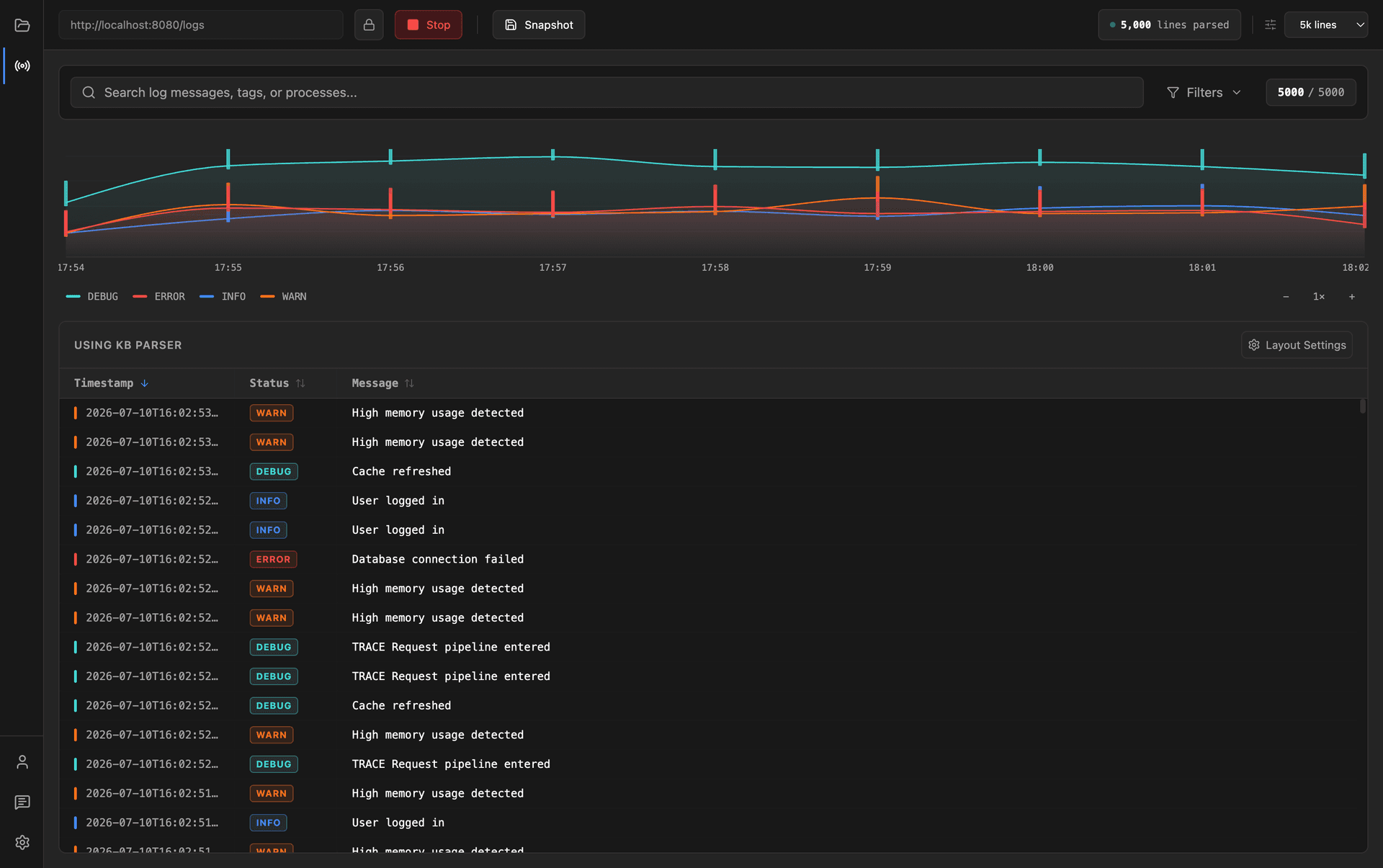
This file behaves like any other log file and supports all Logier features, including Copilot.