How to install the Logier App
A comprehensive guide to downloading and installing the Logier agent on both macOS and Windows systems.
Installing Logier#
Getting your environment set up takes less than a minute. Follow this guide to get up and running on your preferred operating system.
Step 1: Download the Installer#
First, head over to the official Logier Download Page.
💡 Smart OS Detection: You don't need to guess your system architecture. The download page automatically detects whether you are running Windows or macOS and instantly serves up the correct, optimized installer for your machine.
Step 2: Install Logier on Your System#
Once your download completes, choose your operating system below to complete the setup:
Windows Setup Guide#
- Open File Explorer and navigate to your
Downloadsfolder. - Locate the downloaded file (e.g.,
Logier-Setup.exe). - Double-click the file to run the installer.
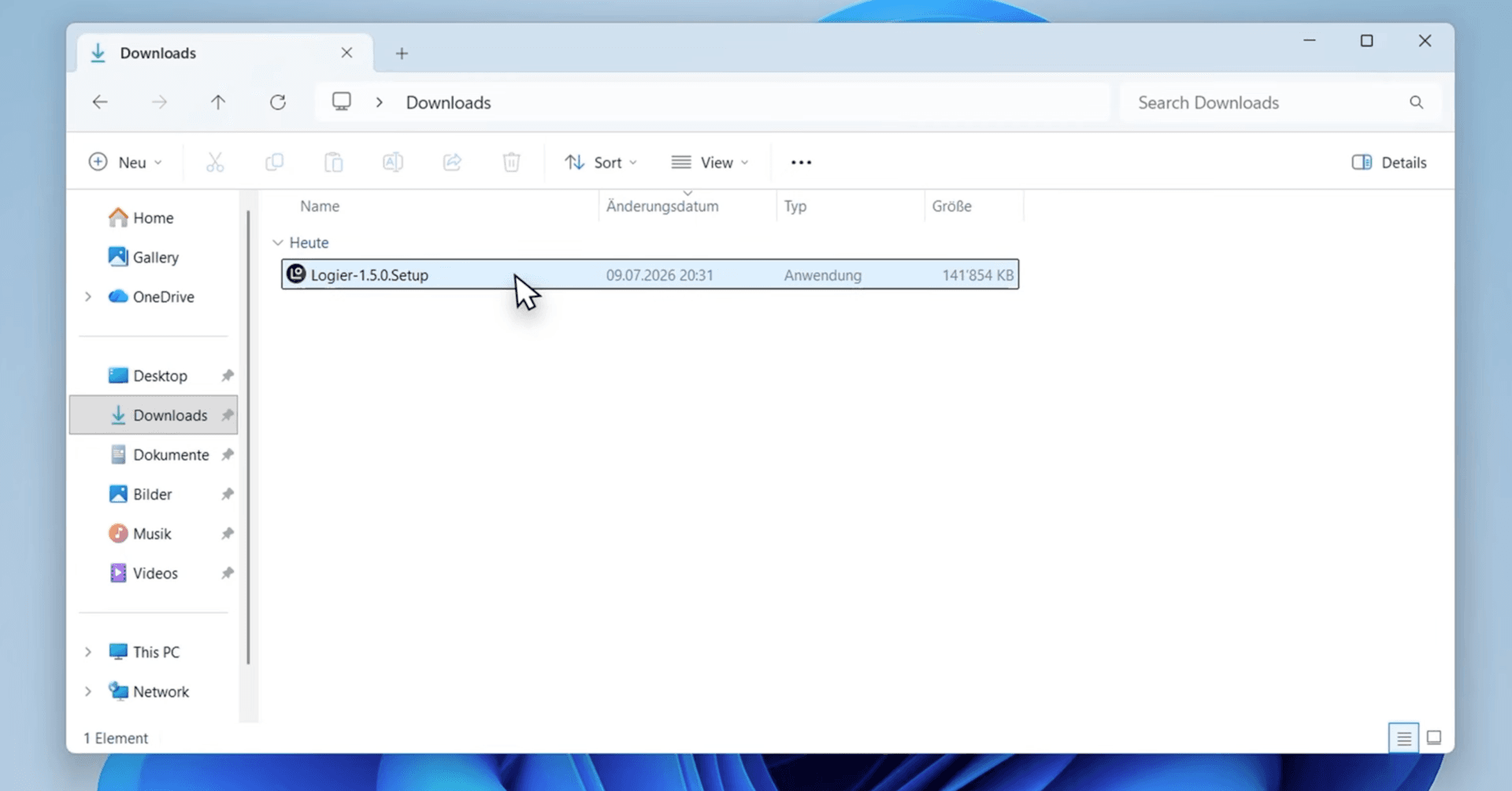
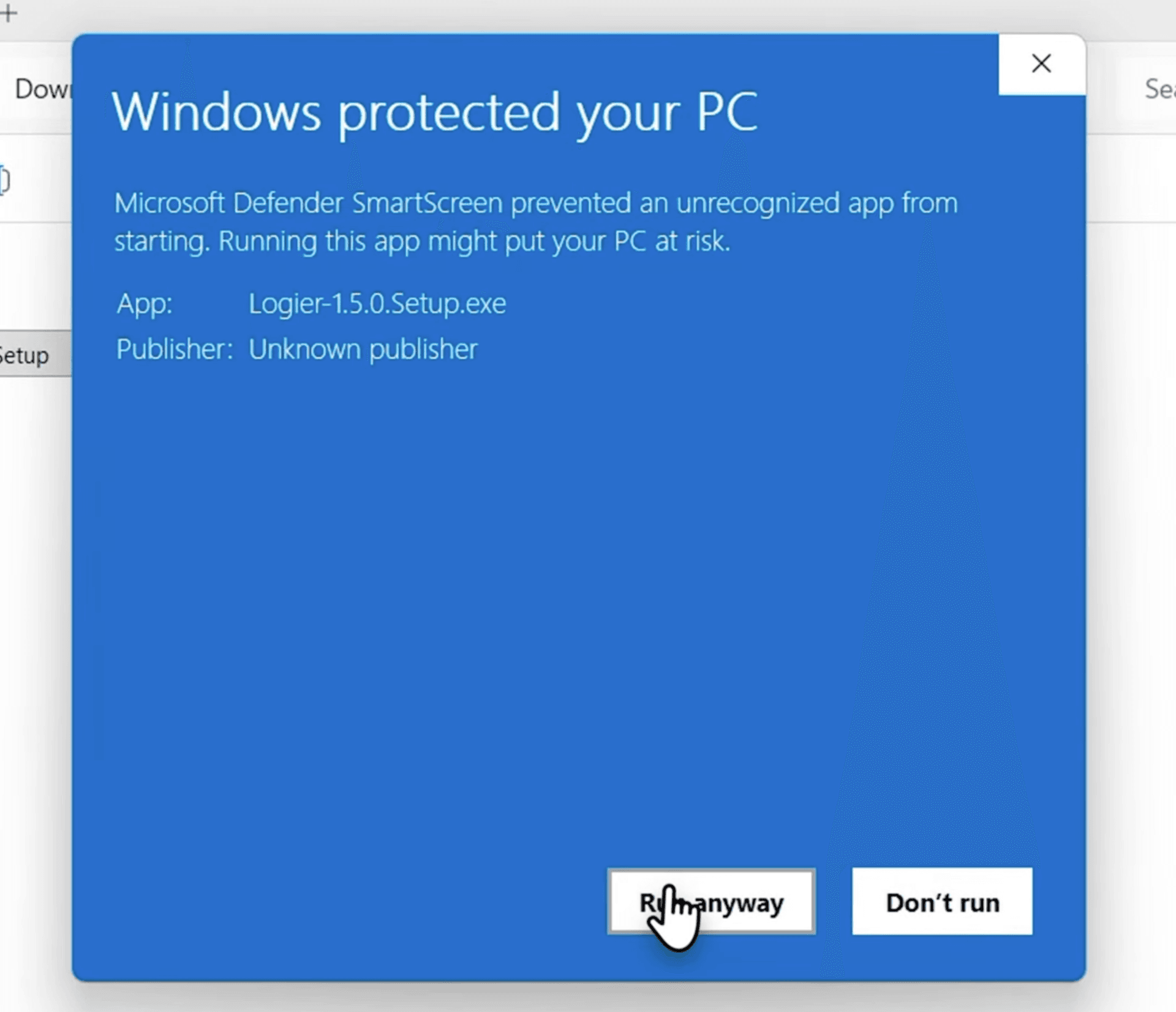
4. You will see a blue screen guard of death.. Don’t worry Logier isn’t installing a virus, but there currently is no Windows Code License registered.
5. Click on “More Info” then on “Run Anyway”
Windows Video Walkthrough
Prefer a visual guide? Watch this quick 30-second walkthrough to see the installation in action:
MacOS Setup Guide#
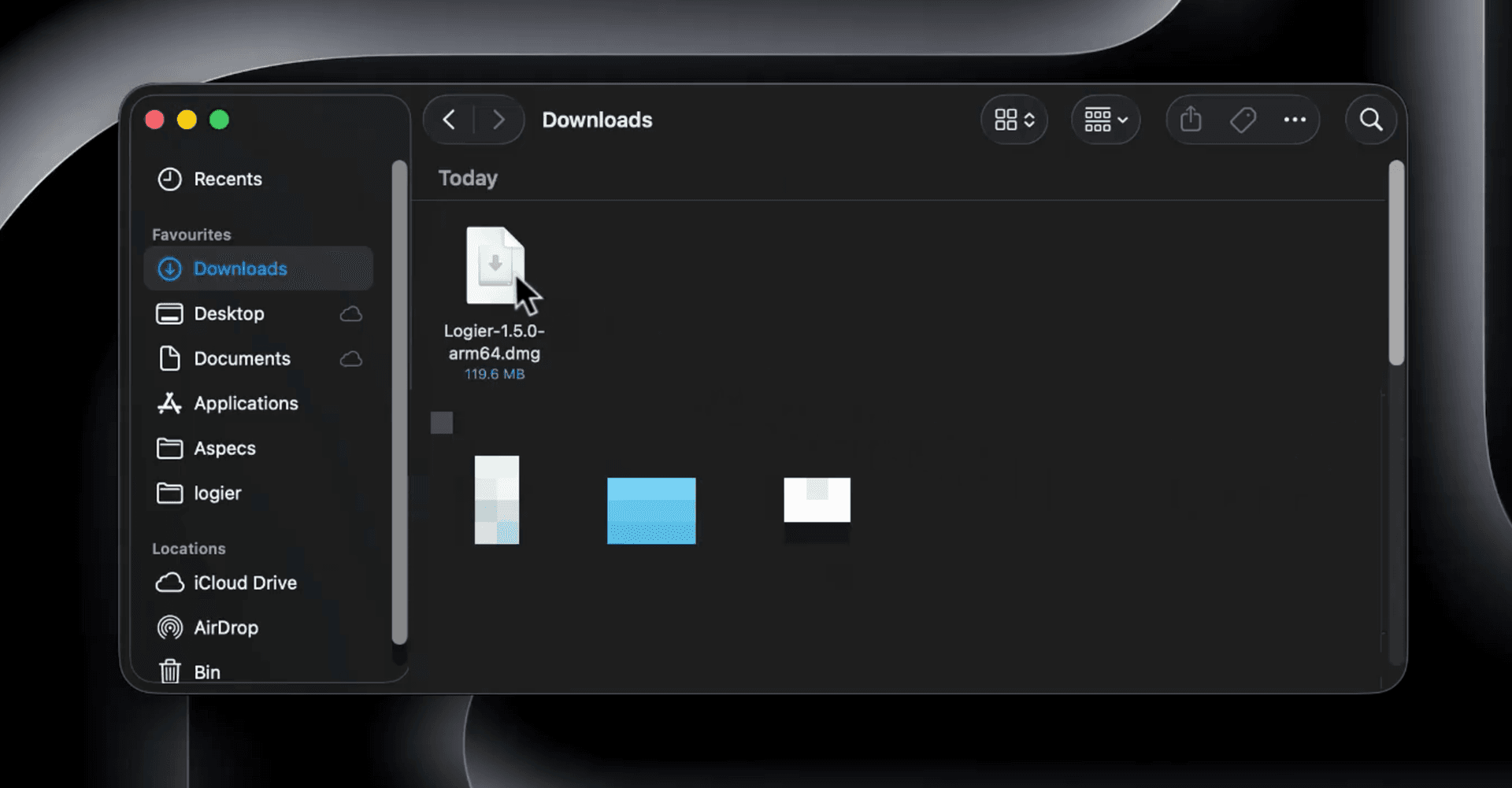
- Open Finder and navigate to your
Downloadsdirectory. - Double-click the downloaded package file to open it.
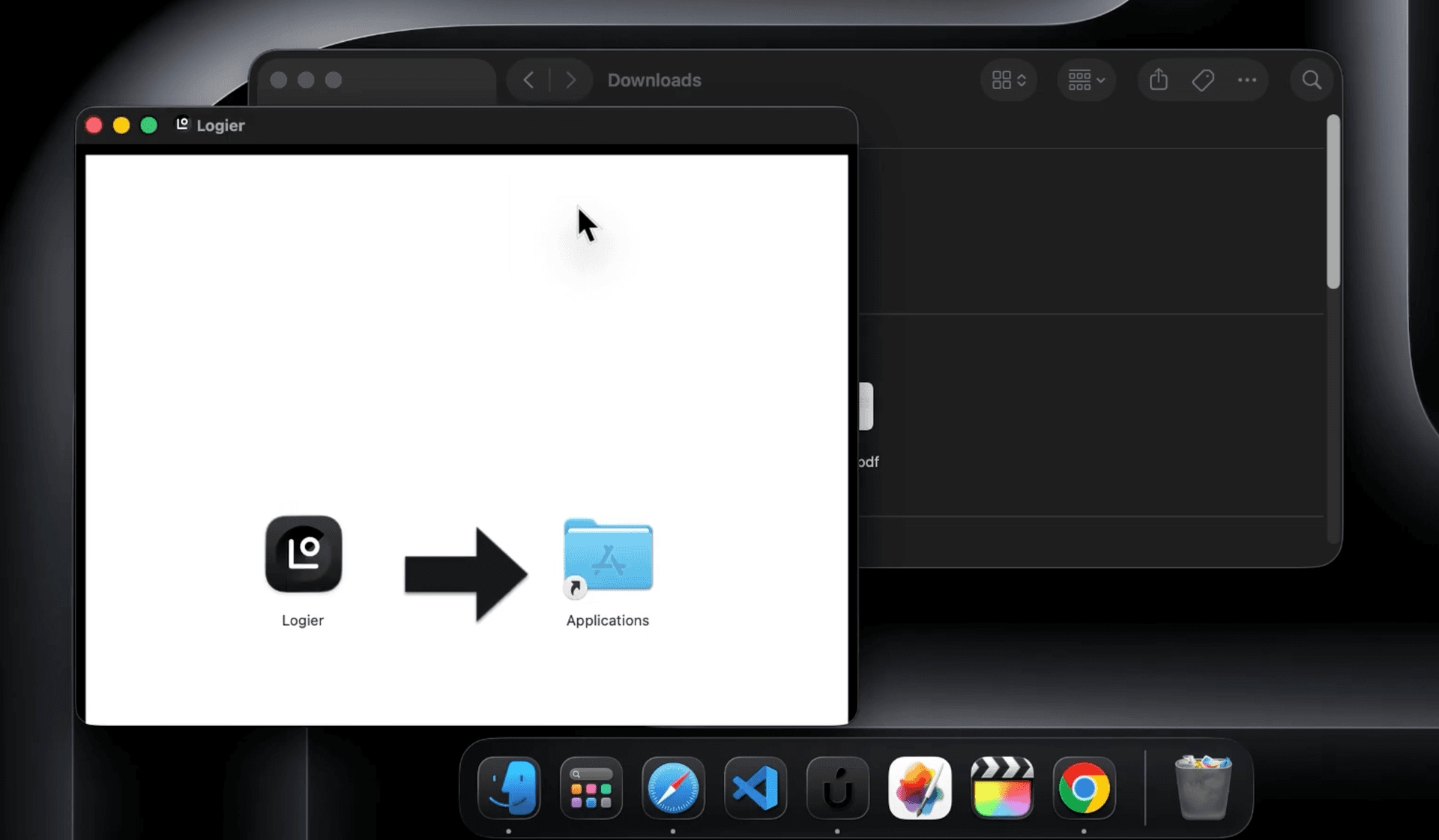
3. Drag the Logier application icon directly into your Applications folder to complete the installation.
4. When asked “Logier is an app downloaded from the internet. Are you sure you want to open it?” Click “Open”
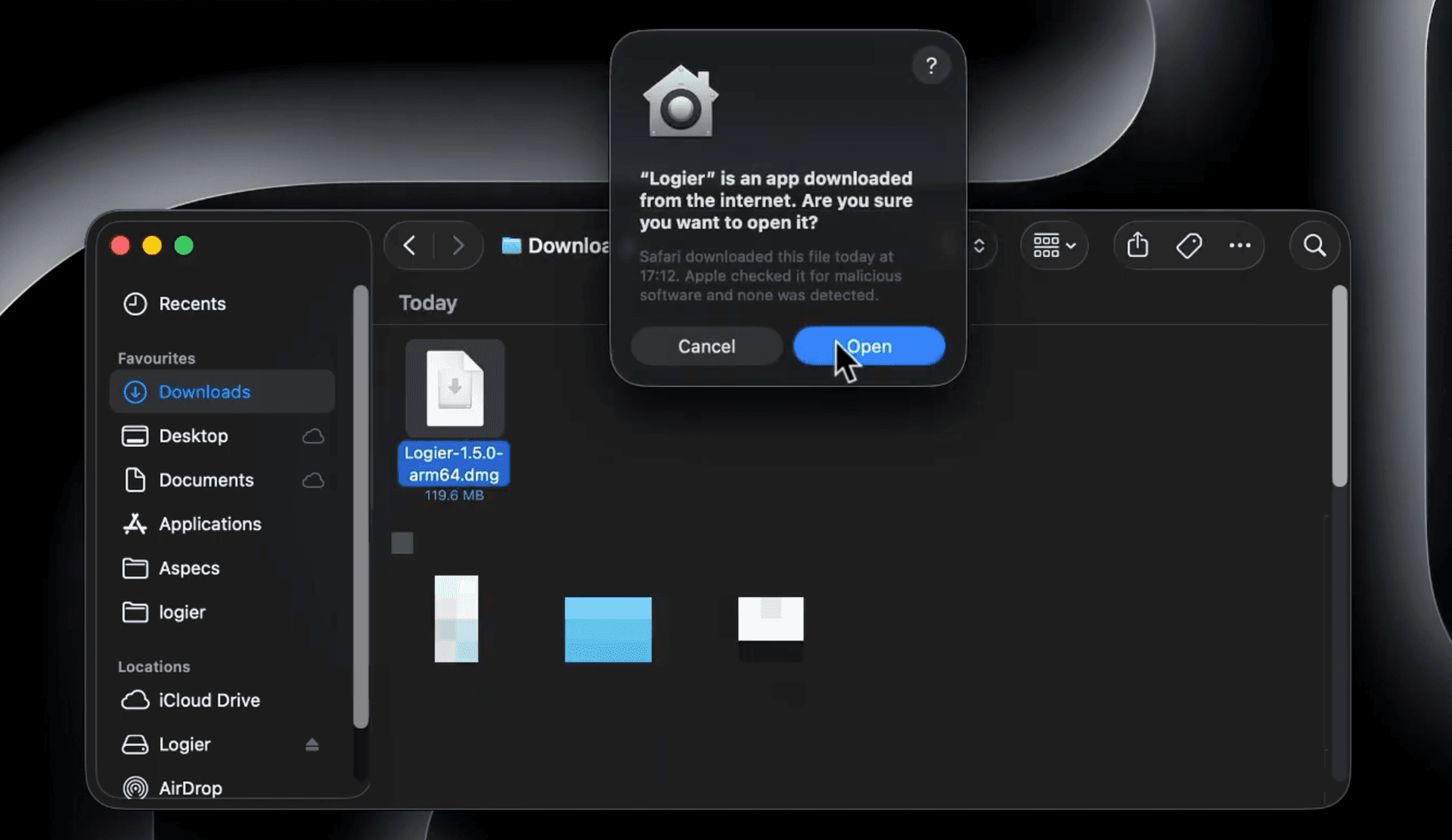
MacOS Video Walkthrough
See how it’s done on a Mac by checking out this short visual guide: