App Updates
Keep Logier up to date with automatic background updates or check manually whenever you prefer. Learn how update checks work, how new versions are installed, and what happens when automatic updates are disabled.
Keeping Logier Up to Date
Logier includes a built-in update system that helps you stay on the latest version with minimal effort.
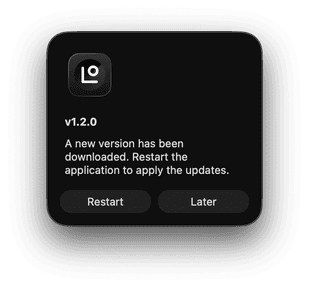
By default, Logier automatically checks for updates after the application starts and continues checking periodically in the background. If you prefer, you can disable automatic checks and update manually whenever it's convenient.
Automatic Updates#
Automatic updates are enabled by default.
When Logier starts, it checks whether a newer version is available. If an update exists, it is downloaded in the background while you continue working.
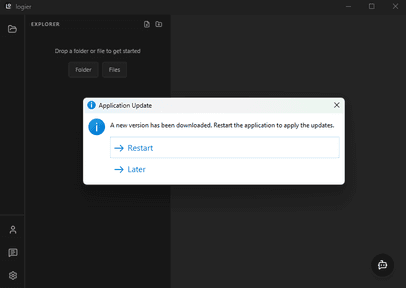
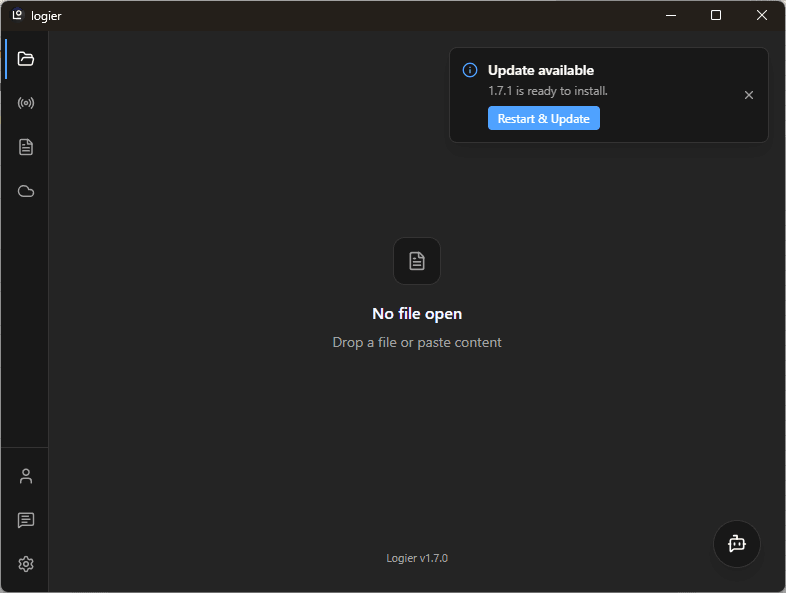
Once the download has finished, Logier lets you know that the update is ready to install. Restarting the application completes the update.
No manual downloads or installer packages are required.
Disabling Automatic Updates#
You can enable or disable automatic updates at any time.
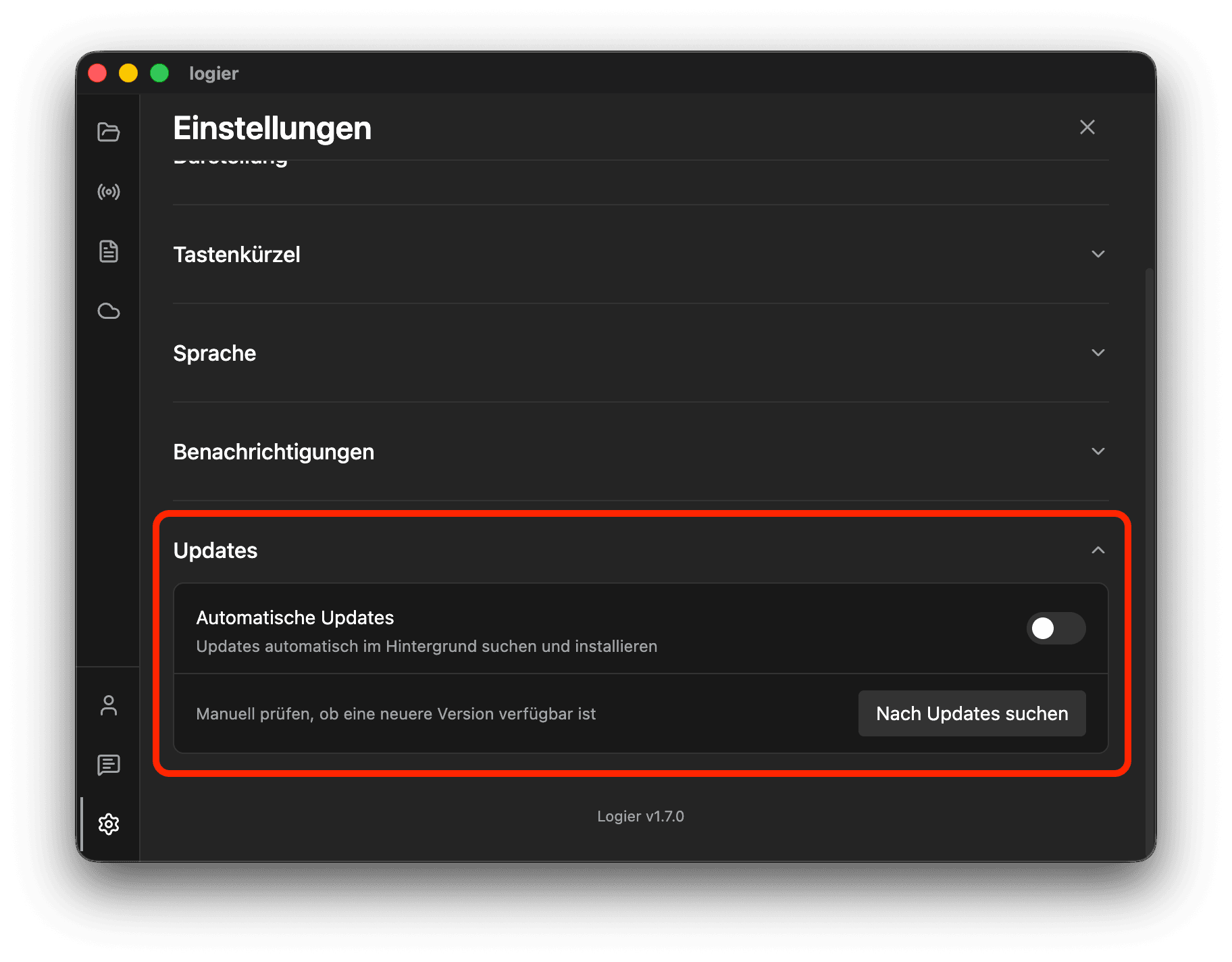
Open Settings → General → Updates and toggle Automatic Updates.
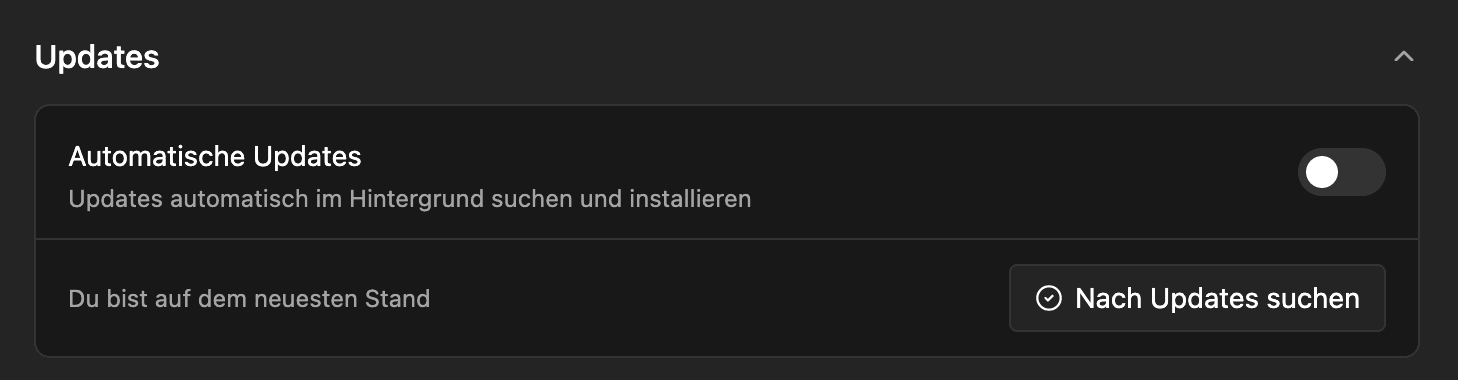
Disabling automatic updates only prevents background update checks. You can still install the latest version at any time by clicking Check for Updates.
This gives you complete control over when Logier downloads and installs new releases.
Manual Update Checks#
If you prefer full control, you can disable automatic update checks.
Open Settings → General → Updates and turn off Automatic Updates.
A Check for Updates button becomes available, allowing you to search for new releases whenever you want.
If a newer version is found, Logier downloads it using the same update system as automatic updates.
Update Notifications#
When a downloaded update is ready, Logier lets you know inside the application.
An in-app notification appears informing you that a new version has been downloaded and is ready to install.
Click Restart & Update to immediately restart Logier and finish installing the update.
How Update Checks Work#
When automatic updates are enabled, Logier:
- —Checks for updates shortly after startup.
- —Continues checking periodically while the application is running.
- —Downloads available updates automatically in the background.
- —Notifies you when the update is ready to install.
This keeps Logier current without interrupting your workflow.